
First run, screen by screen
Every screen a freshly installed instance shows, in the order it shows them, with an example for each field and a sentence on what that entry causes the product to do. Not what the label says. What the entry does.
The worked example throughout is a UGREEN NAS running the canonical Docker Compose deployment, pulling finished backup archives off two VPS over SFTP. The first run configures the first of the two. The second one is an ordinary backup set added afterwards.
Setup is not a separate flow. Once you have an administrator account you land in the ordinary application with a banner saying it has no configuration yet, and you press Add backup set. The wizard behind that button is the same wizard you will use for every set after this one, which is the point: a parallel setup form would be a second place for the same questions to drift.
Every signed-in page has a log panel docked to the bottom of the browser window. It is not in the wizard pictures below, because these were taken in a window made tall enough that no screen needed stitching together and the panel is pinned to the bottom of that window, out of frame. It has a page of its own, with moving pictures, because a docked log is something you watch rather than something you look at.
#274 made an expired enrolment token report “The administrator account could not be created”, which blamed your password for a problem with the link. #275 drew a Cancel control during first run that could not do anything. Both are closed, and the flow below is the one that replaced them.
Before you open a browser
Four things have to be true, and none of them is checked for you in a way that produces a useful message if it is not.
- The host directories exist and the container can write them. The runtime image is distroless with no root step, and a bind mount does not chown its source, so create the state, backup and config directories on the NAS and chown them to the container's uid and gid yourself. The config directory is mounted as a writable directory, not a read-only file, which is exactly what lets setup write
config.yamlinto it. - The config directory is empty. Setup is a one-time door. If anything is already at
/etc/retnd/config/config.yaml, however it got there, the first-run write refuses rather than overwriting it, and the instance serves the ordinary application instead of the setup flow. - The remote server has an account to pull from. A dedicated, shell-less, chrooted SFTP account is what the project's own SSH setup guide recommends, and it has a consequence worth knowing before you get to step 6: against that account shape a remote checksum cannot be computed at all, so verification is transfer verification, not a remote-versus-local hash comparison.
- You have working SMTP details in front of you. Enrolment asks for a recovery email address and for the mail server to reach it through, and it proves both by sending a confirmation message before it will create the account. Server, port, transport security, the sender address the server will accept, and a username and password if it wants them. A provider's app-password page is the usual place to get them; whatever you use, it has to work from the NAS, because that is where the connection is made from.
The screens
- The enrolment link the install prints
- Create the administrator
- The application with nothing in it
- Step 1: Source
- Step 2: Connection test
- Step 3: Engine
- Step 4: Repository domain
- Step 5: Source consistency
- Step 6: Completion and validation
- Step 7: Storage, retention and holds
- Step 8: Review, and Finish setup
- What you get next
- Coming back later
- Forgetting the password
- Verifying the recovery address
- Adding the second VPS
- Screens not pictured here
The enrolment link the install prints
There is no screen for this one. On first start, before any browser is involved, the engine prints a one-time enrolment secret to its own stdout. If you installed with install_docker_host.py, you already have it: the installer waits for that line and prints it as the last thing a fresh install says, so scroll up in the install output rather than going looking for it.
If it is not there — the notice landed after the installer stopped waiting, or you stood the stack up by hand — it is in the engine container's log rather than the web one's, and a fresh link is one command away: python3 install_docker_host.py enroll-link restarts the engine, waits for the new notice and prints it. Either way, the line looks like this:
retnd-web: no administrator account exists yet. Open
http://10.0.0.10:8080/enroll?token=<a long random string> to create one
(valid 30 minutes, single use).| Thing | Value | What it means for you |
|---|---|---|
| The host in the link | this machine's own address | install_docker_host.py reads the address this machine's default route leaves by and writes it into PUBLIC_BASE_URL, so the link works from the laptop you are reading it on. Open it as printed, token and all. If you wrote the Compose file yourself instead, the shipped default is http://localhost:${LISTEN_PORT}, which only resolves on the NAS: swap the host for the NAS address, keep the token exactly as printed, and set PUBLIC_BASE_URL in .env to get a correct link next time. |
| The token | 24 random bytes, base64url | Reaching the port is deliberately not sufficient to claim the administrator account. The token is what proves you can read the container's own log, which is the thing an attacker on the LAN cannot do. |
| Valid 30 minutes | hard expiry | After 30 minutes the token stops working and enrolment fails, currently with a message that does not say so. See the callout on the next screen. |
| Single use | consumed atomically | It cannot succeed twice. A restart before enrolment completes mints a fresh token and silently invalidates the old one, so an old link in your scrollback is dead even inside its 30 minutes. |
The notice is printed only while enrolment is still open. Nothing in the log means an administrator already exists, and the answer is to sign in rather than to hunt for a token. Restarting the engine mints a new token only when no administrator has enrolled.
Create the administrator
Open the link. This account manages retnd and nothing else. It is not your NAS operating-system account, and it is stored on the NAS as an Argon2id hash in /data/state/local-auth.json, in the same volume as the lifecycle journal, so it survives a container restart without a second volume. The recovery address and the mail settings below land in that same record, and the mail password lands there as a reference to a secret rather than as the secret.
The form asks for more than a password, and the reason is the sentence above: this is the only account, and enrolment is the only time it is created. Beside the username and password it takes a recovery email address and the mail server to reach it through, and before it writes the record it sends a confirmation message to that address over exactly those details. If the send fails, the enrolment fails and no account is created. An address nobody has ever delivered to is worth nothing on the day it is needed, and the day it is needed is the day nobody can sign in to fix it.
The token lasts 30 minutes and works once, and nothing re-issues it while the engine keeps running. One command mints a fresh one, from wherever you ran the installer:
python3 install_docker_host.py enroll-linkOutput
==> Restarting retnd, which is what mints a token
==> Waiting up to 90s for the new notice

retnd-web: no administrator account exists yet. Open http://10.0.0.10:8080/enroll?token=jdurSlionp6jyoHTzP_5fHYfLy3Kk6tq to create one (valid 30 minutes, single use).

    Valid 30 minutes, and it works once. Every link printed before this one is now dead,
    including any still in your scrollback.
It restarts the engine, because that is what mints a token, and reads back the newest notice rather than the first: the container keeps its log across the restart, so the earlier link is still in it and is the one the restart killed. That is the same reason an old link in your scrollback is dead even inside its 30 minutes.
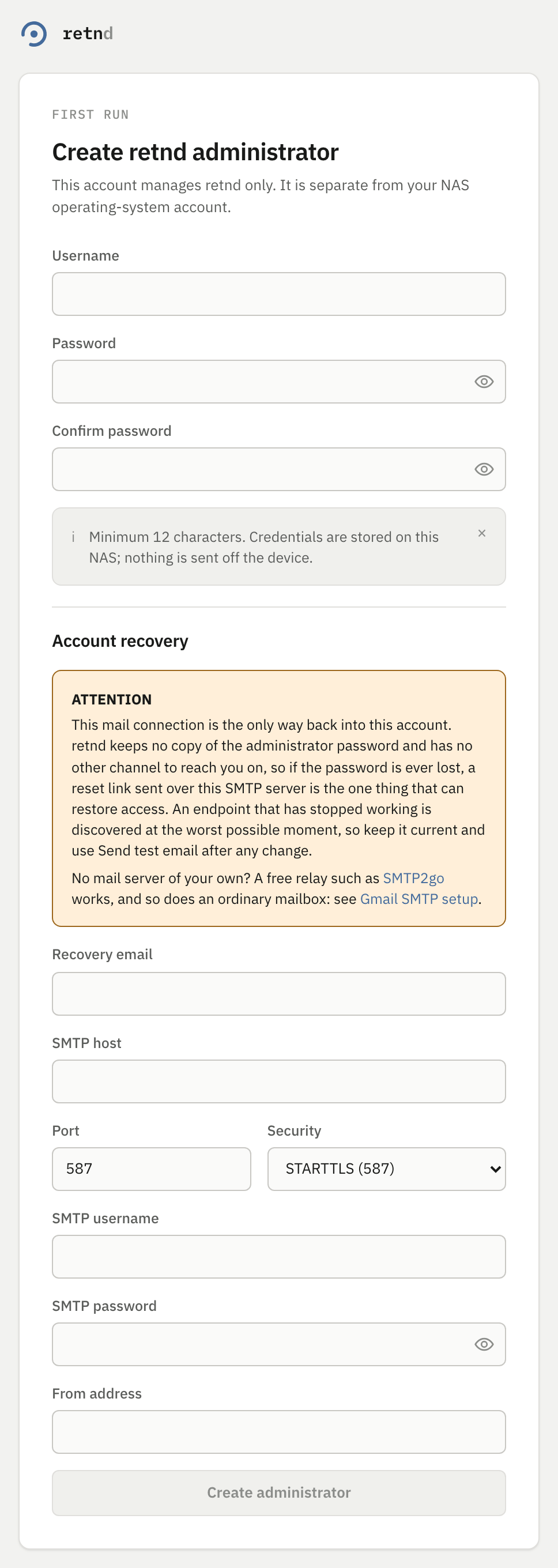
Above the mail fields the page carries a warning headed ATTENTION, with links to SMTP2go and Gmail SMTP setup. It is there because this is the one part of setup that needs a credential from somewhere else, and the two links go to the two ways most deployments get one: a transactional-mail provider's free tier, or an app password on an existing mailbox. Neither is required and neither is endorsed — any server that will accept a submission works — but an operator who has never configured SMTP should not have to guess where to start while holding a 30-minute token.
| Field | Example | What the entry does |
|---|---|---|
| Username | nas-admin | Becomes the single administrator record for this instance. Enrolment is one-shot and irreversible: once this record exists, the enrolment route is closed for good and there is no second account. What there is instead is a way back into this one, which is what the recovery address below buys. Pick something you will recognise in a log line. |
| Password | a passphrase of 12 characters or more | Hashed with Argon2id and written to the state volume. The plaintext is never stored and never leaves the NAS. Twelve characters is a floor the form enforces, not a recommendation. |
| Confirm password | the same again | Client-side only. You can change this password later from Settings, which asks for the current one, and a password nobody knows is now recoverable through the recovery address below rather than through a reinstall. This field is still the cheapest place to catch a typo, because the alternative costs you a working mail path. |
| Recovery email | nas-admin@example.com | Stored on the administrator record beside the username, and the only address a password reset will ever be sent to. It is not a second login: the username stays what you sign in with. Anything that is not an address is refused as INVALID_EMAIL before a connection is attempted, and the account is not created until a confirmation message has actually been accepted for this address. |
| SMTP host and Port | smtp.example.com, 587 | Where that confirmation, and every later reset, is submitted. The connection is made from the engine container, not from your browser, so a server only the laptop you are sitting at can reach fails here, and so does one behind a firewall the NAS is on the wrong side of. |
| Security | STARTTLS | One of STARTTLS, TLS or none, and it defaults to STARTTLS. Port 587 is usually the first and 465 the second. None sends the credential below in the clear, so it is for a relay on the same host and for nothing else. |
| SMTP username and SMTP password | an app password, not the password to your mailbox | Authenticates the submission. The password is the one field here that is neither hashed nor stored: the record keeps a reference to it in the same form the product uses for every other secret, and no API response and no log line ever carries it back. Leave both empty for a relay that asks for no credential. |
| From address | retnd@example.com | The sender the messages are submitted as. It has to be one this server accepts from this account, which is the most common reason a first attempt comes back SMTP_SEND_FAILED: providers reject a sender they do not own long before they reject a password. |
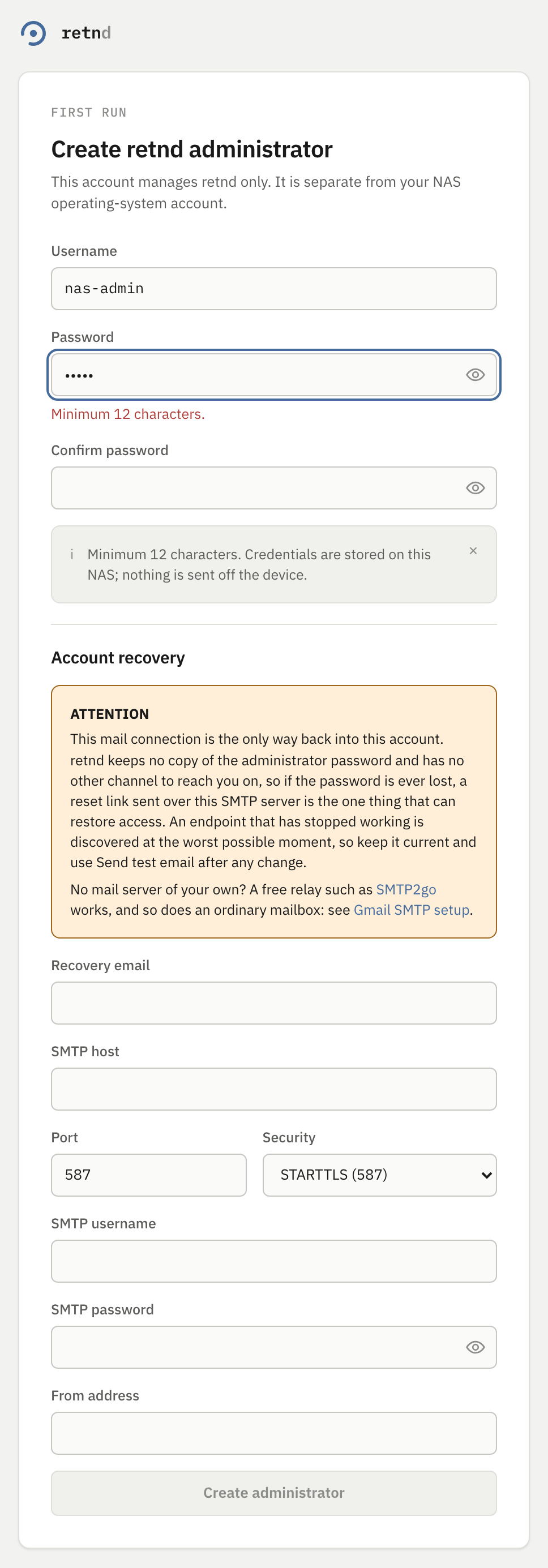
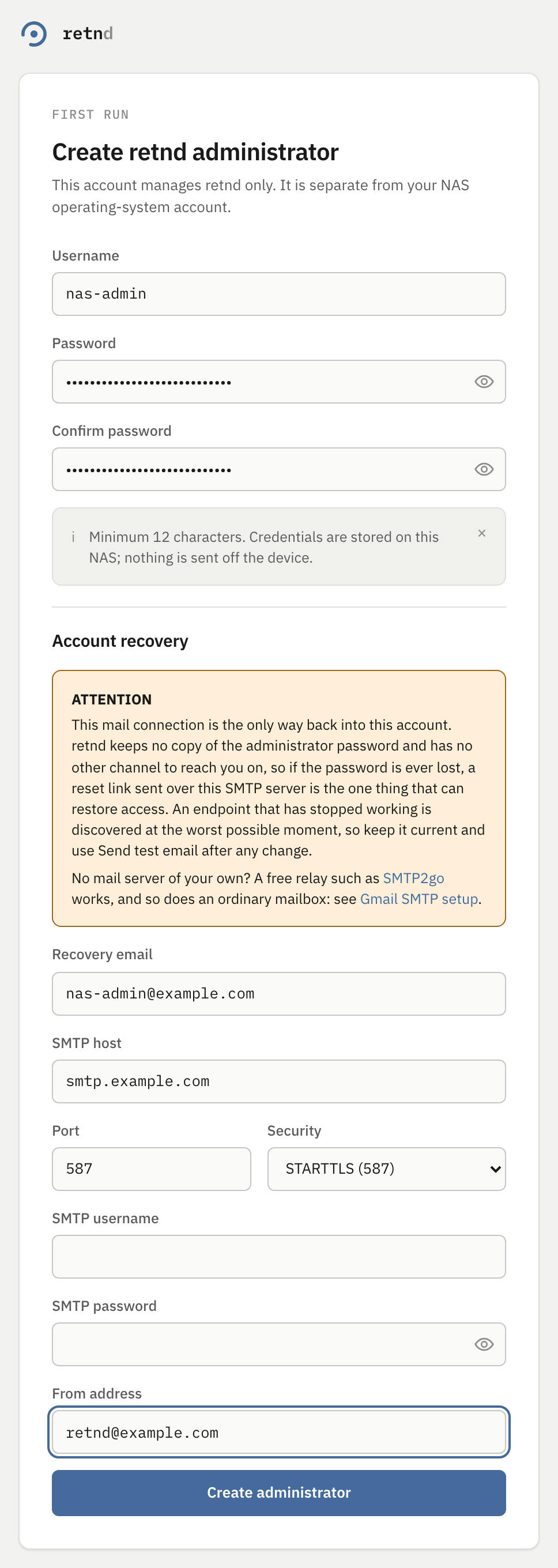
SMTP username and SMTP password are blank in the pictures above, and that is a real configuration rather than an unfinished screenshot: the fixture these are shot against submits without a credential, and a placeholder in a password field is the one kind of placeholder somebody copies into production. Fill both in if your own server asks for them. Security is likewise left on its default of STARTTLS.
A message titled “retnd: recovery email confirmed”, sent the moment before the account is written. It is the receipt for the whole arrangement: it proves the address is real, that the server accepts mail from this deployment, and that a reset link would arrive if you ever needed one. Read it as the only part of setup that is verified rather than merely entered, and if it does not appear, treat the enrolment as unfinished even if the browser says otherwise.
The API answers SMTP_SEND_FAILED, the enrolment is refused, and no administrator is created — which is the point: an account whose recovery path has never worked is an account that cannot be recovered. The message carries the server's own refusal, sanitised, and it is usually one of three things: a From address the provider will not let this account send as, a password that is your mailbox password where the provider wanted an app password, or a port and security setting that disagree (587 with implicit TLS, 465 with STARTTLS).
The link is not spent by a failure. Only a successful enrolment consumes the token, so fix the field and press the button again on the same page. That covers a rejected password, an address refused as INVALID_EMAIL, and every SMTP failure. It is also a change: before #830 a too-short password burned the token and left you restarting the engine for a fresh link.
Read that message as the token, not the password. When the enrolment secret is missing, expired or already used, the API answers BOOTSTRAP_TOKEN_INVALID with “missing, expired or already-used bootstrap token”, and the page currently discards that and shows “The administrator account could not be created” instead. Trying a different password cannot help.
The fix is a fresh token, and this is the one failure on this screen that needs one: restart the engine container, read the new link out of the log, and open that one. If the token was already used, an administrator exists and you should sign in instead.
The correlation id shown on that error, cid_enroll, is a hardcoded literal and does not match the one in the response, so it will not find anything in a log. This is #274 and it is being fixed.
Error banners here once rendered their leading glyph as the literal six characters \u2715 rather than as a cross, which was #257. Every glyph in the interface is now a compiled Font Awesome path rather than a Unicode character, so that class of defect is gone along with the one where the navigation looked different on every operating system.
The application with nothing in it
Enrolment signs you in and drops you on the dashboard, not on a setup page. Every section in the navigation is there and every one of them has nothing behind it, and a banner says why.
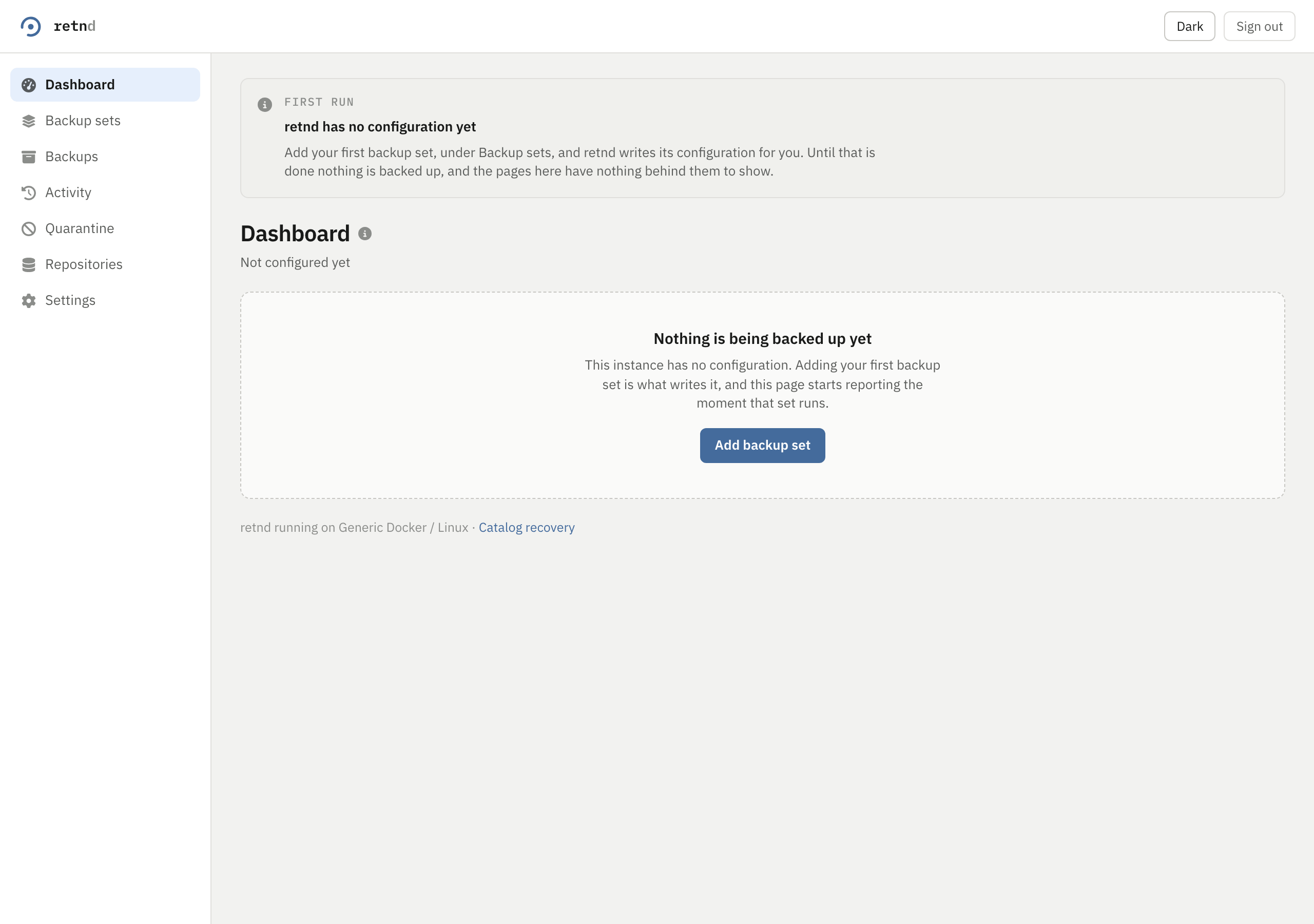
That banner is one of the two on this product that cannot be dismissed, and the reason is worth knowing rather than reading as an oversight. It is mounted once for the session, above the routed content, so no navigation unmounts it and a dismissal would last until a hard reload. Its body says “until that is done nothing is backed up”. An operator who clears that and forgets believes they have backups they do not have.
Press Add backup set. Everything from here is the ordinary wizard.
Step 1: Source
Eight steps, and the tracker across the top ticks each one off as it becomes valid. You can go back to any step you have reached; you cannot jump forward past one you have not answered, because the tracker refuses it and so does Continue. The footer says which step you are on out of how many, so the count on screen is the count this page walks.
The tracker names each step in a word or two, and the step itself opens with a fuller heading. Where the two differ this page uses the tracker's label to tell you where to click and the step's own heading to describe what you are looking at: step 4 is Repository on the tracker and “Repository domain” at the top of the card, step 5 is Consistency and “Source consistency”, step 7 is Retention and “Storage, retention and holds”. One of them changes with the engine rather than being merely shorter: step 6 always reads Verification on the tracker, while the card reads “Completion and validation” for the artifact engine this tutorial uses and “Verification” for the incremental one. That is the product asking two engines the same question, not a mistake on this page.
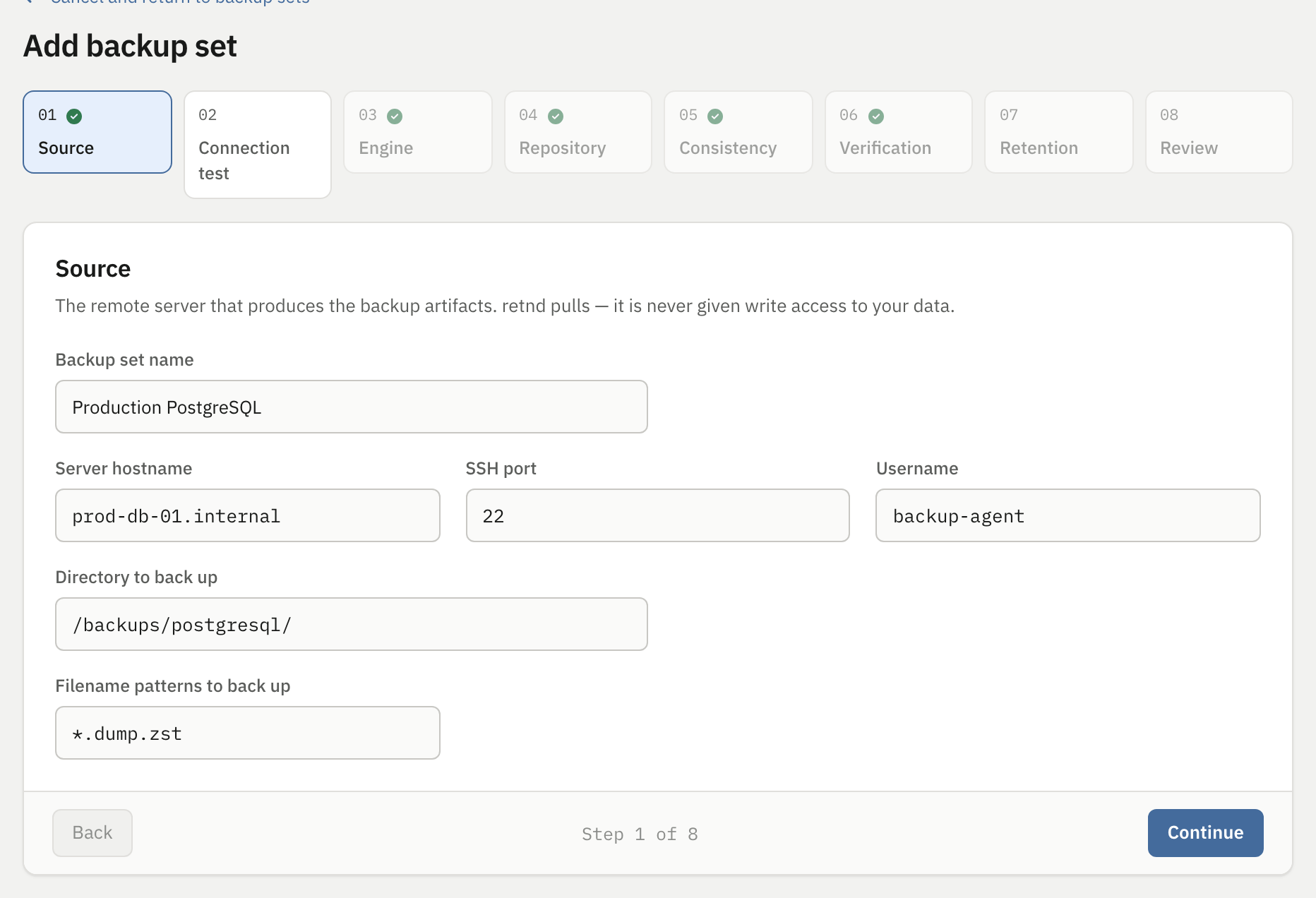
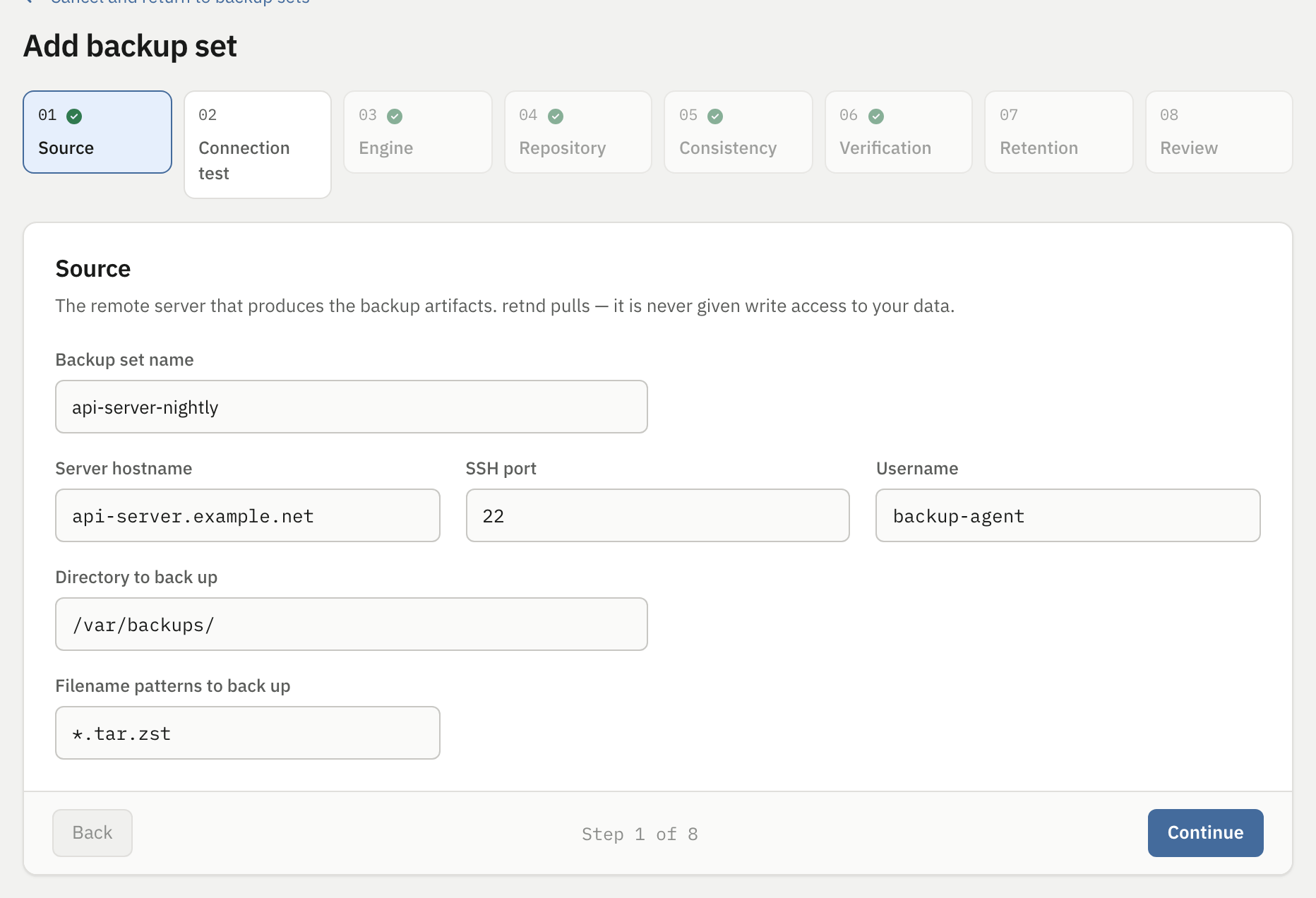
| Field | Example | What the entry does |
|---|---|---|
| Backup set name | api-server-nightly | Becomes the backup set's id in config.yaml, and half of its permanent identity: a backup set is identified by source plus set, never by the set name alone. It also becomes part of a filename on disk, because the trust anchor from step 2 is written to known_hosts.d/<source>_<name>_known_hosts, so keep it to something filename-shaped. |
| Server hostname | api-server.example.net | The VPS this NAS pulls from. Editing it after you have trusted a host key on step 2 revokes that trust, deliberately, so that trusting server A cannot leave server B showing as trusted. It also un-proves the connection test, which locks every step after step 2 again until you run it against the machine now named here. |
| SSH port | 22 | Written to remote.port. The step will not let you leave it until this is a whole number between 1 and 65535. The port shown in the pictures is the SSH default, which is also what the field's own help offers as its example; put your own number there. The save path still falls back to 22 for anything that is not a port, and the gate is what stops you ever handing it one — see below. |
| Username | backup-agent | The SFTP account on the remote server. This account only ever needs read access to the directory below plus the right to delete the artifacts it produced, because the manager pulls and then removes the source. It is never given write access to your data. |
| Directory to back up | /var/backups/ | Becomes remote_path, and it has to be absolute. This is the directory on the VPS that gets emptied. Every file directly under it that matches a pattern and passes the completion check is pulled and then deleted from the VPS, so point it at a directory whose only job is holding finished backups, never at a working directory. It is asked for here rather than three steps later because step 2's connection test lists this very directory: asking afterwards would mean testing before anything had said what to test. |
| Filename patterns to back up | *.tar.zst | Becomes include, a list. Comma-separated here, split and trimmed on save, and each pattern is matched against a remote file's own name only and never its path, so a pattern cannot contain a slash. A file that matches nothing is invisible to the manager: it is never pulled and never deleted, which is the safe direction but also means a producer that changes its output extension quietly stops being backed up. |
A non-numeric port used to become 22 silently, and because 22 will usually be reachable on a VPS, a typo produced a wizard that appeared to work while pointing somewhere you did not intend. That coercion is still in the save path and is now unreachable through the wizard: the step is unfinished until the field holds a real port, so Continue and the tracker both refuse to move. What the gate cannot catch is a port that is a number and the wrong one, so check remote.port in the written config.yaml once setup finishes.
The patterns above say what to back up. Nothing on any screen says what to leave out. The configuration file does have a field for it — exclude_paths, a list of directory paths under the remote folder — and it is deliberately not the same kind of thing as the patterns above: a pattern is a filename and may not contain a slash, a path is a path and prunes the walk itself rather than filtering what the walk found. Set it by editing config.yaml. The backup-set detail page draws an Exclude row and it reads as empty on every real deployment whatever the file says, because the API response carries no field for it and the client fills that row with an empty list.
Step 2: Connection test
One step, and three questions that used to be two steps and a panel on the last one: which key this set authenticates with, which machine it is allowed to talk to, and what those two can actually do right now. It is second in the flow on purpose. Its answer constrains the steps after it — the write probe in its own report is what decides whether step 7 may offer to delete from the remote server at all — and nothing past it is reachable until the test has come back clean.
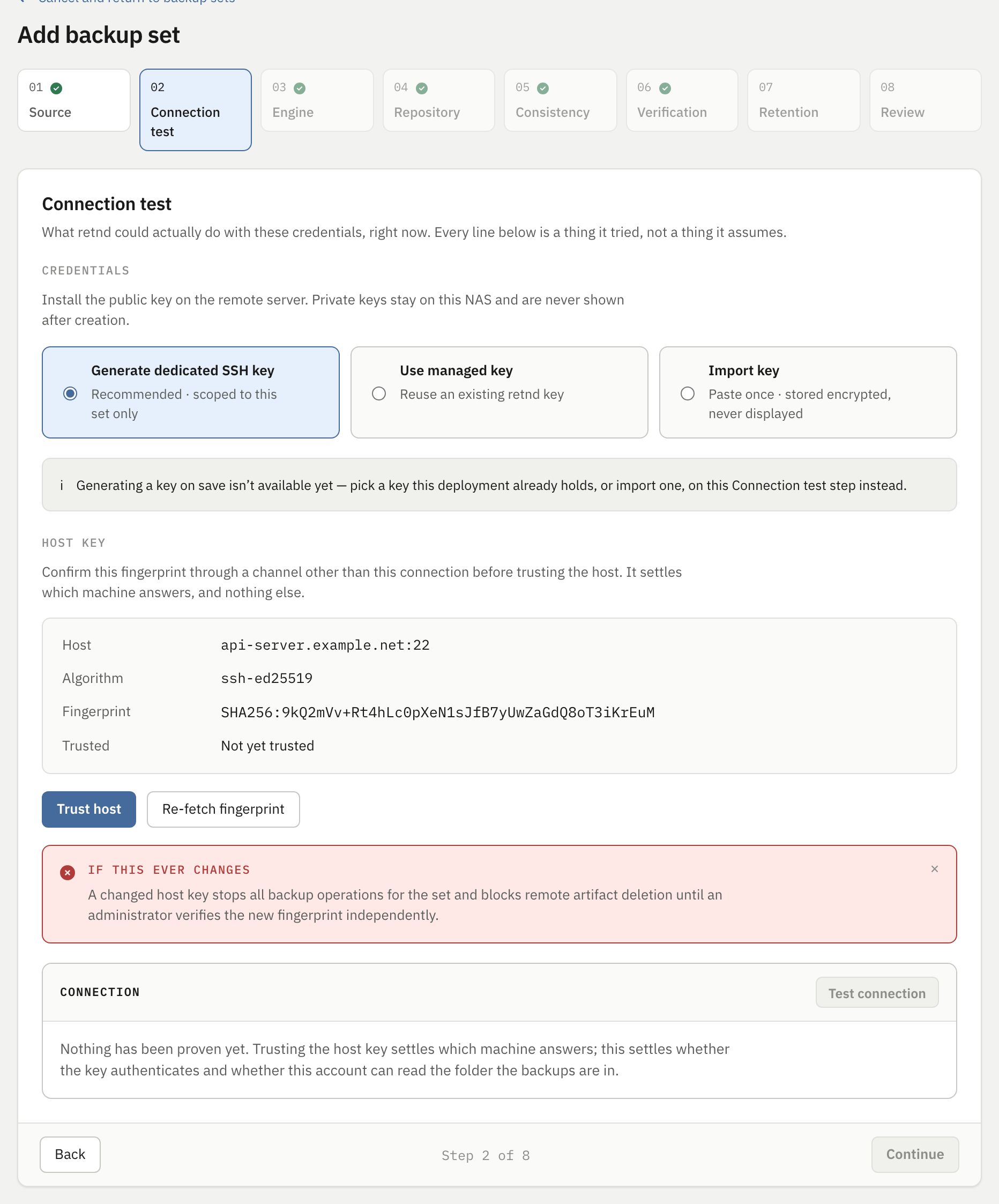
Credentials
Three options are offered, and the default is the one that cannot finish.
| Choice | State today | What it does |
|---|---|---|
| Generate dedicated SSH key | not implemented | Marked “Recommended” and selected by default, and saving with it selected is refused. Picking it draws an information banner on this step saying so and pointing at the two options beside it, which is a change worth knowing: the banner used to send you to an “Authentication” step that no longer exists, for controls that are directly below it. It no longer shows a public key to install, because the key it used to show was a fixed example string for a path that cannot be saved. |
| Use managed key | works, once you pick one | Lists the keys this deployment already holds, each with its fingerprint and the backup sets currently using it — a real read of the key store, not a sample list, so on a default install the key the installer generated is already sitting here. A key that needs a passphrase to be resolvable, or whose public half could not be read, is listed and disabled with the reason on it. Saving is refused until one of them is actually selected; with one selected it saves like an imported key, because from the save's point of view it is one. |
| Import key | works | Paste the private key of an account you have already installed the matching public key for. This is the path the rest of this page walks. |
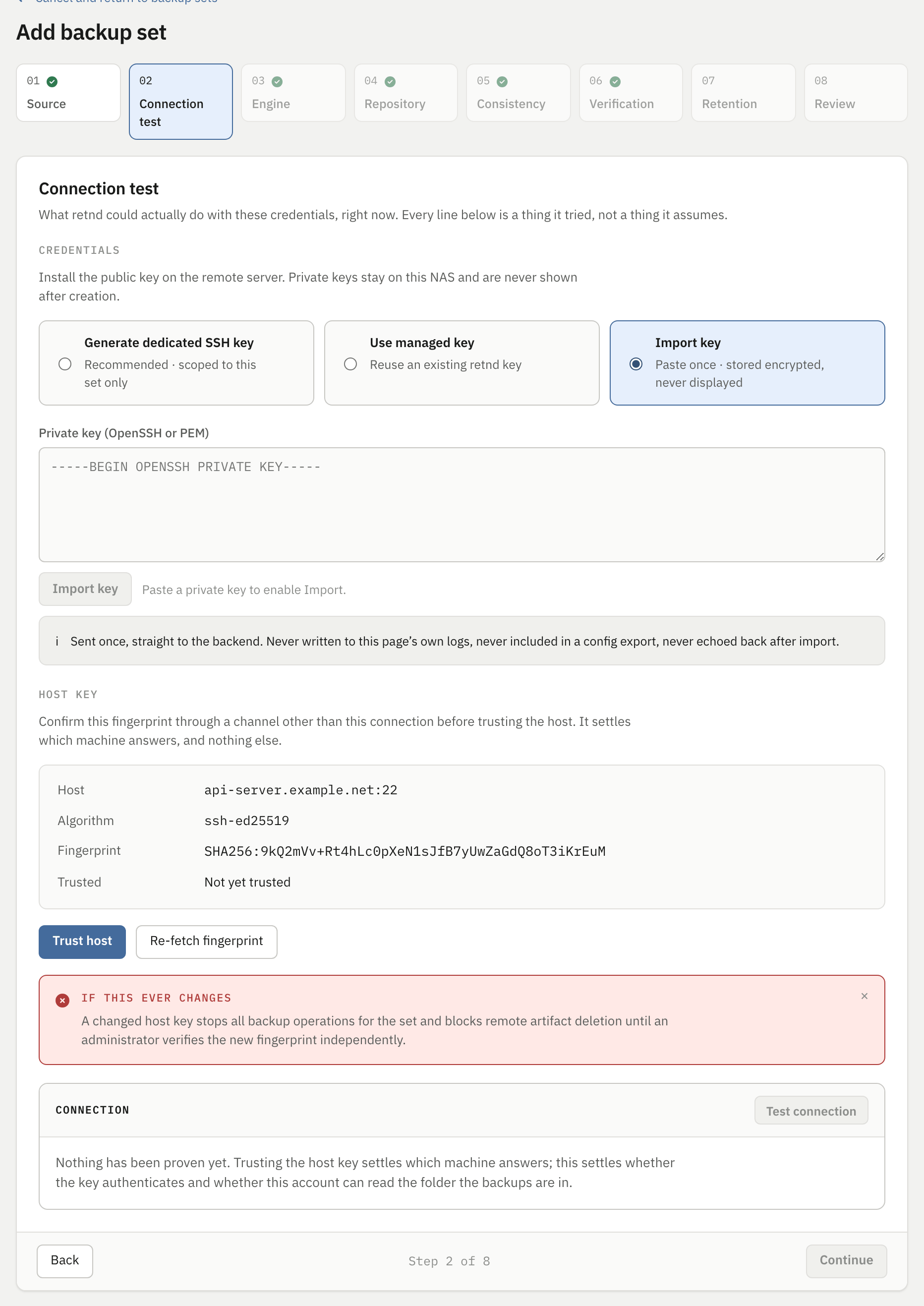
Paste an unencrypted OpenSSH or PEM private key and press Import key. What happens then is worth knowing precisely, because it is the only moment key material exists anywhere near a browser:
- The key goes straight to the backend in one call. The page discards its own copy the instant that call returns and holds only the returned id and fingerprint from then on.
- The backend validates it as a real unencrypted private key, then writes it to
<config dir>/ssh_keys/<id>with mode 0600. The configuration file only ever names that path. There is no field in the schema for raw key bytes at all, by design, so a key can never end up inline inconfig.yaml. - Spellcheck, autocomplete, autocorrect and autocapitalise are all switched off on that textarea, because browser “enhanced” spellcheck sends the contents of an unmasked text field to a third-party service as you type.
- It cannot be shown again. Replacing it means pasting a different key.
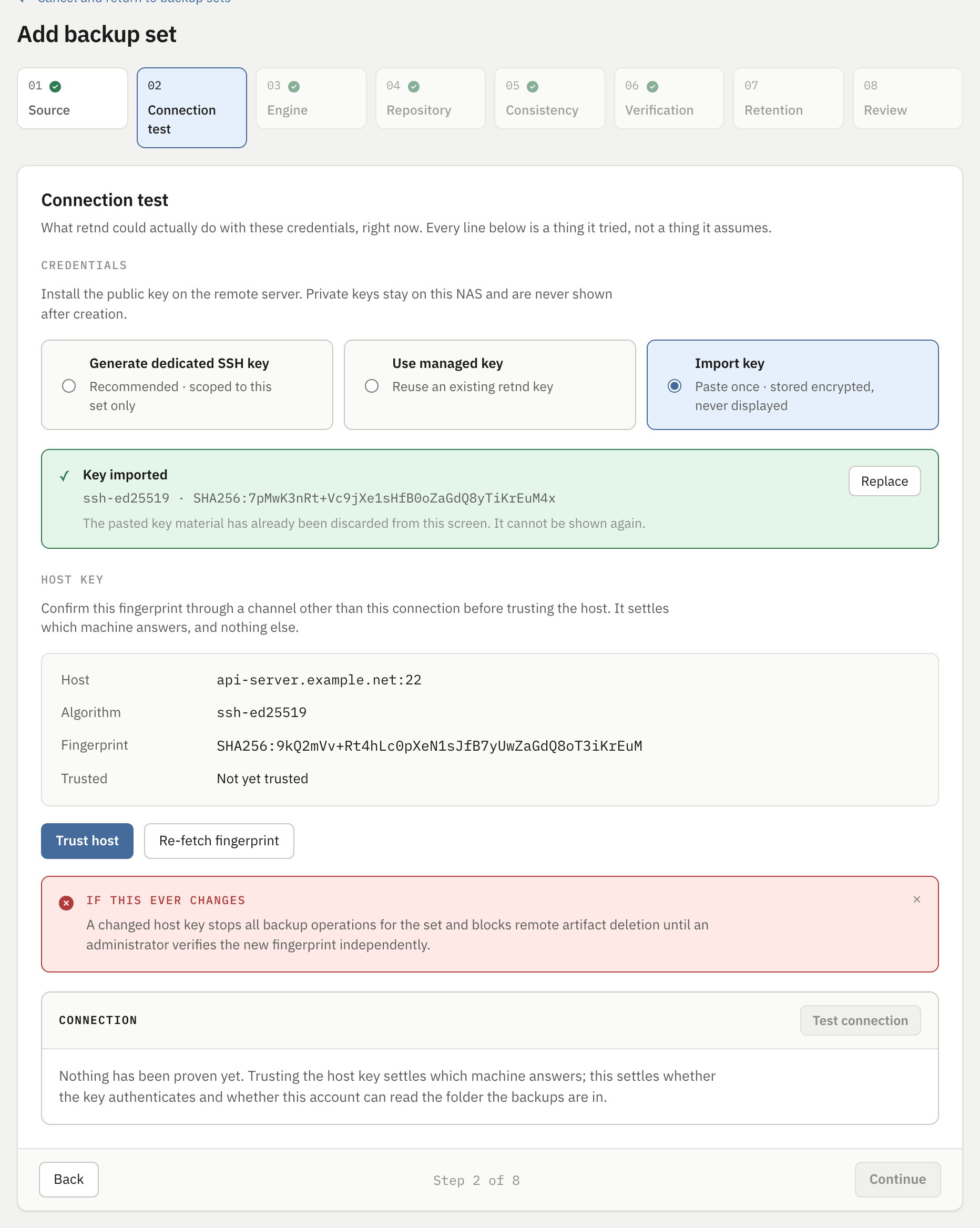
ssh-keygen -lf on your own copy of the key before continuing.Host key
The same step then fetches the remote server's host key and asks you to trust it. This is the half people click through, and it is the one that decides whether a future man-in-the-middle is caught or ignored. The fingerprint in the pictures is the development fixture's; yours will be your server's.
The instruction on the screen is the whole point of it: confirm this fingerprint through a channel other than this connection. Run ssh-keygen -lf /etc/ssh/ssh_host_ed25519_key.pub on the VPS itself, over a session you already trust, and compare. A fingerprint that only ever came down the connection you are trying to authenticate proves nothing.
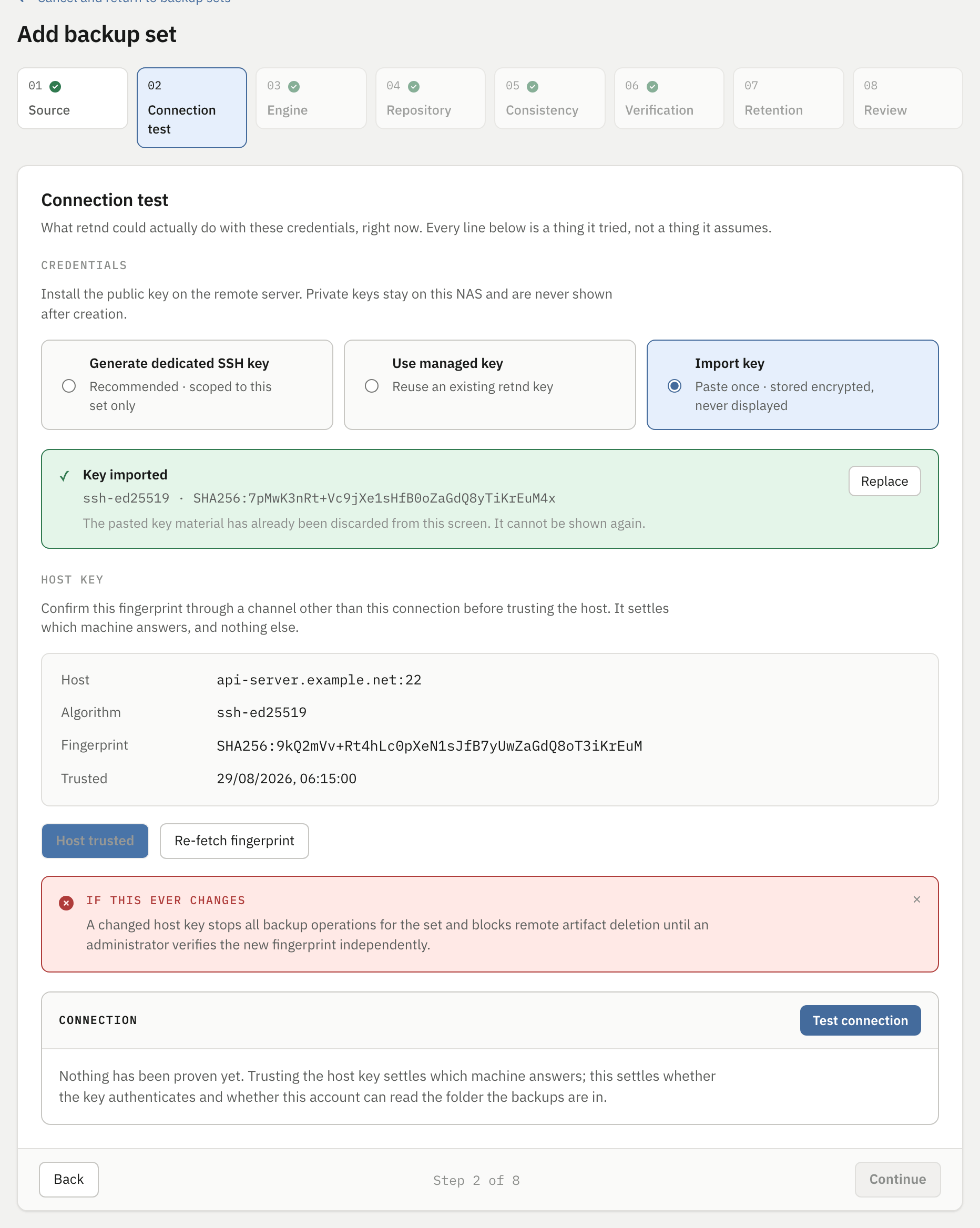
| Control | Example | What it does |
|---|---|---|
| Trust host | press once, after comparing | Captures the probed known_hosts line. On save it is written to <config dir>/known_hosts.d/<source>_<set>_known_hosts and named by remote.known_hosts, and every later connection is checked against that file. This is the trust anchor, not display text. |
| Re-fetch fingerprint | after a legitimate server rebuild | Re-runs the probe against the same host. It does not grant trust; you still have to press Trust host, and if the key has changed the button becomes a destructive-confirm variant reading “Trust new fingerprint”. Changing the hostname or port on step 1 re-probes on its own and drops any trust already granted. |
If this fingerprint ever changes, the backup set halts. Backup operations for it stop, and remote artifact deletion is blocked, until an administrator verifies the new fingerprint independently. That is the intended behaviour and it is why this half of the step exists: the alternative is a manager that keeps deleting remote originals while talking to a server that is no longer yours.
Host-key verification cannot be switched off. A configuration that names a known_hosts value which would disable it is refused outright at load time, so there is no accepted spelling of “skip this”.
The connection has to be proven before anything is written
This is #624, and it closed a gap that had been open since the wizard existed. Saving used to be gated on a pinned known_hosts line and an imported key, and both of those settle host identity: which machine answered. Neither says whether the key authenticates or whether the account can read the folder. So a backup set could be created, enabled and put on a schedule against a connection nobody had ever made.
The check used to sit on the review step, because that was the first point at which everything it needs had been answered. It is here now, and the reordering is the point: its answer is available to every step that depends on it, rather than arriving after the engine, the domain and the retention chain had already been chosen.
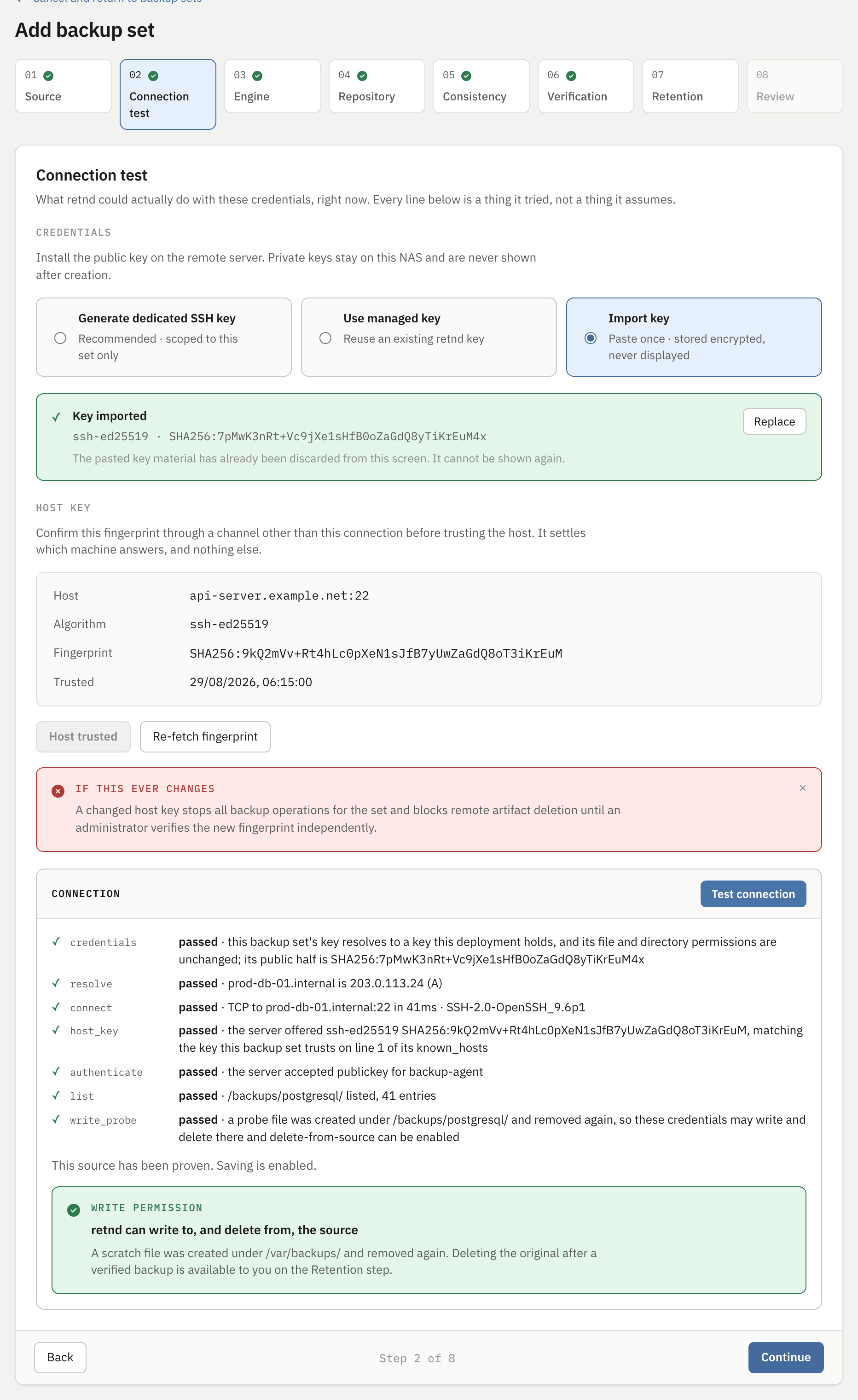
The last of those seven is #852's write probe, and it is stated here rather than only where it takes effect. A source that proves writable arms the source-deletion behaviour on step 7; one that does not disables it there and says why. Read-only is a perfectly good posture for a backup account, and the recommended one unless you want retnd to free space on the server for you: backups still run, because reading is all a backup needs. An operator who reads this line is never surprised by a disabled control five steps later.
Editing the host, the port or anything else the test was run against takes the result back to unproven and re-locks every step after this one. A green tick standing for a connection nobody made to the machine now named on step 1 is the defect the whole gate exists for.
Step 3: Engine
The one answer that cannot be changed later, asked once there is enough context to answer it. It has a default, so the step is “answered” from the moment it exists; what the step is for is making sure the default was read.
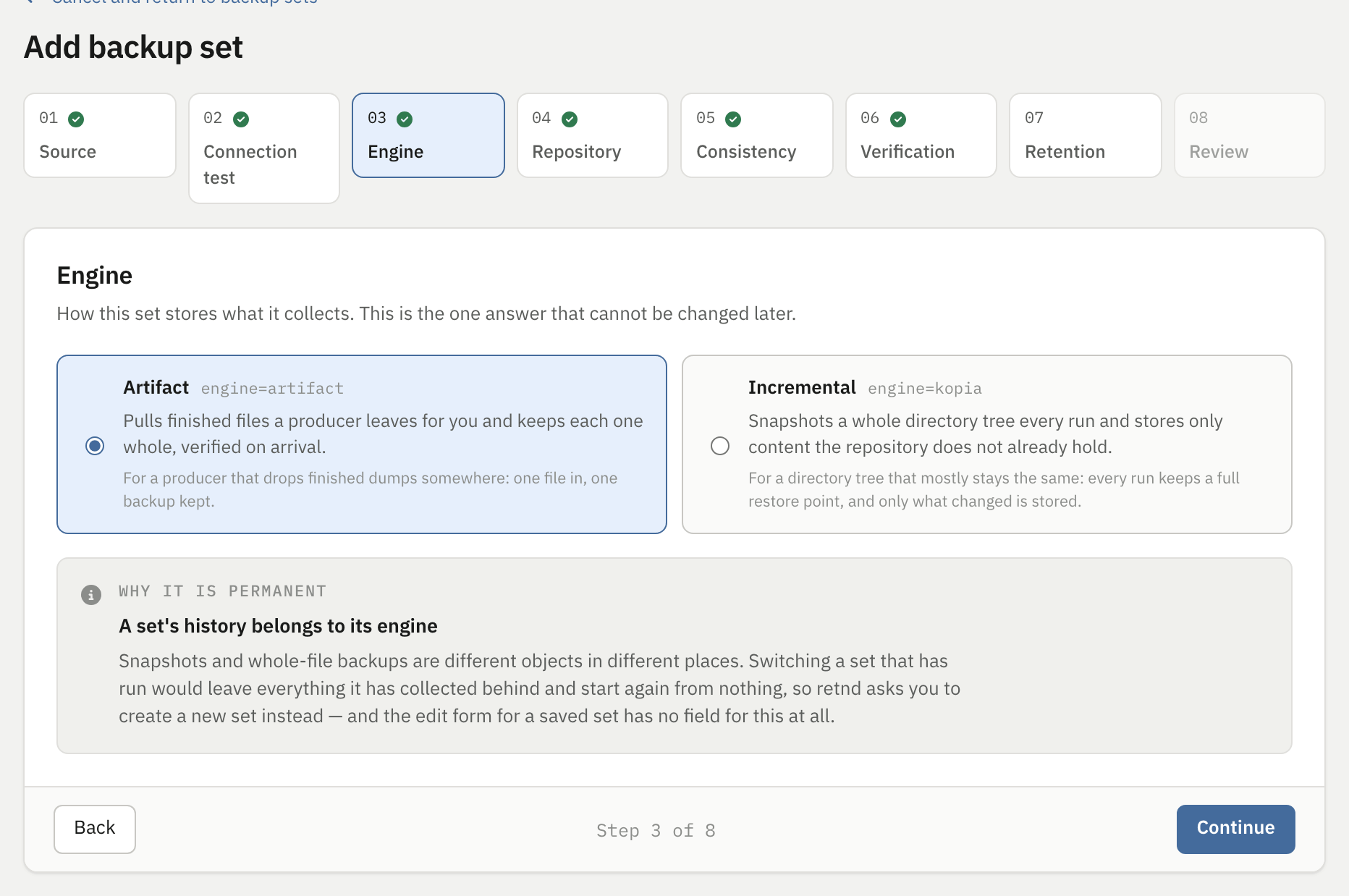
| Choice | Written as | What it does |
|---|---|---|
| Artifact | engine=artifact |
The default, and what this tutorial configures. Pulls finished files a producer leaves for you and keeps each one whole, verified on arrival. One file in, one backup kept. Steps 4 and 5 do not apply to it and step 6 asks the artifact form of its question. |
| Incremental | engine=kopia |
Snapshots a whole directory tree every run and stores only content the repository does not already hold. Every run keeps a full restore point and only what changed is stored. This is the engine that makes steps 4, 5 and 6 into real questions, and it is out of scope for this page. |
Snapshots and whole-file backups are different objects in different places. Switching a set that has run would leave everything it has collected behind and start again from nothing, so retnd asks you to create a new set instead — and the edit form for a saved set has no field for this at all. This is the step to slow down on.
Step 4: Repository domain
The encrypted store an incremental set's snapshots live in. For the artifact engine this tutorial uses there is nothing here to choose, and the step says so rather than disappearing.
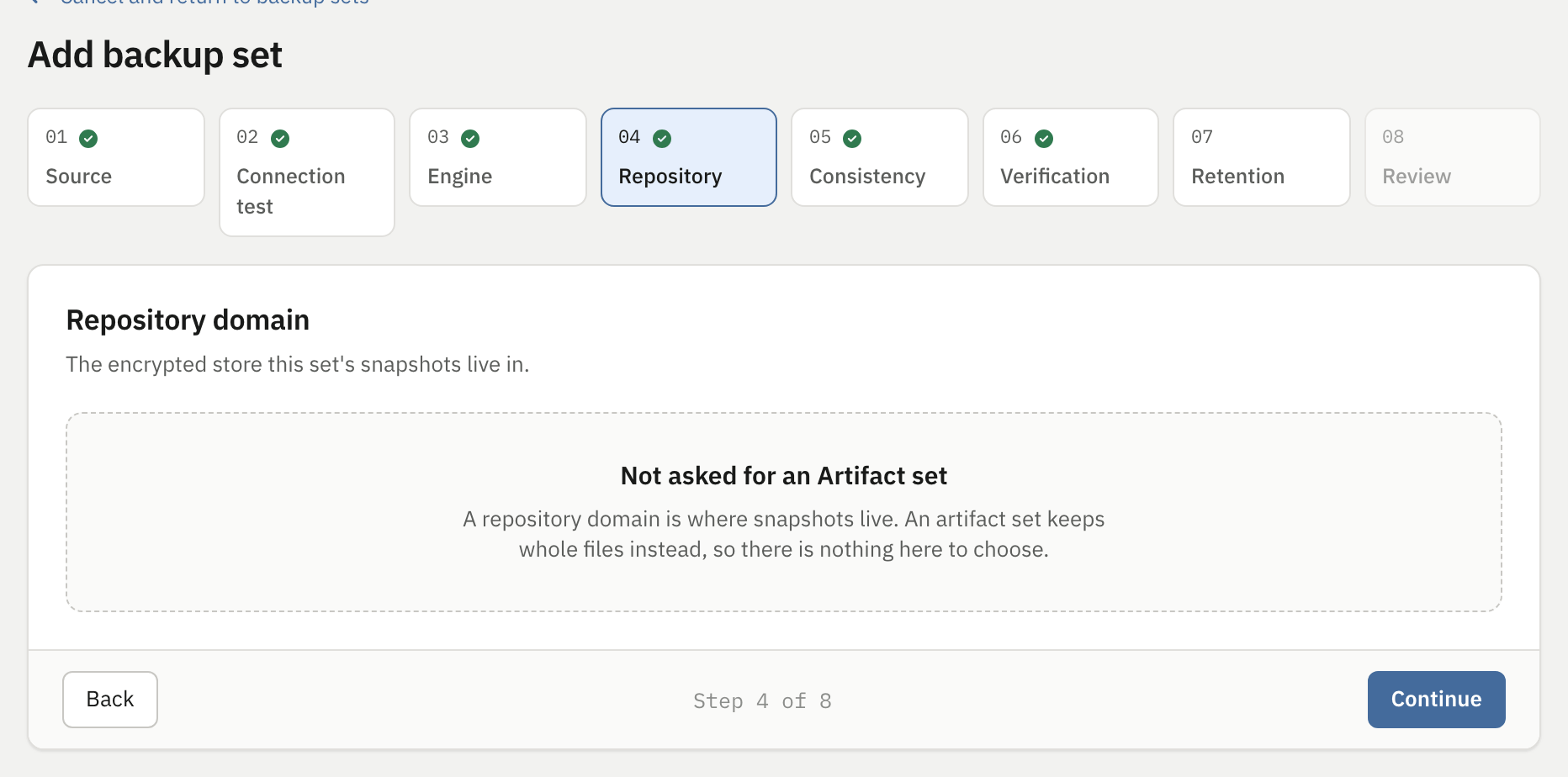
A rail that changed length under you as you filled the form in would teach nothing, and a step that is simply skipped teaches nothing either. A step that explains itself teaches the difference between the two engines at the moment it matters, which is why both this step and the next one are still there, still numbered, and complete rather than blocking: the tracker ticks them because an artifact set has no answer to give, not because one was given.
Step 5: Source consistency
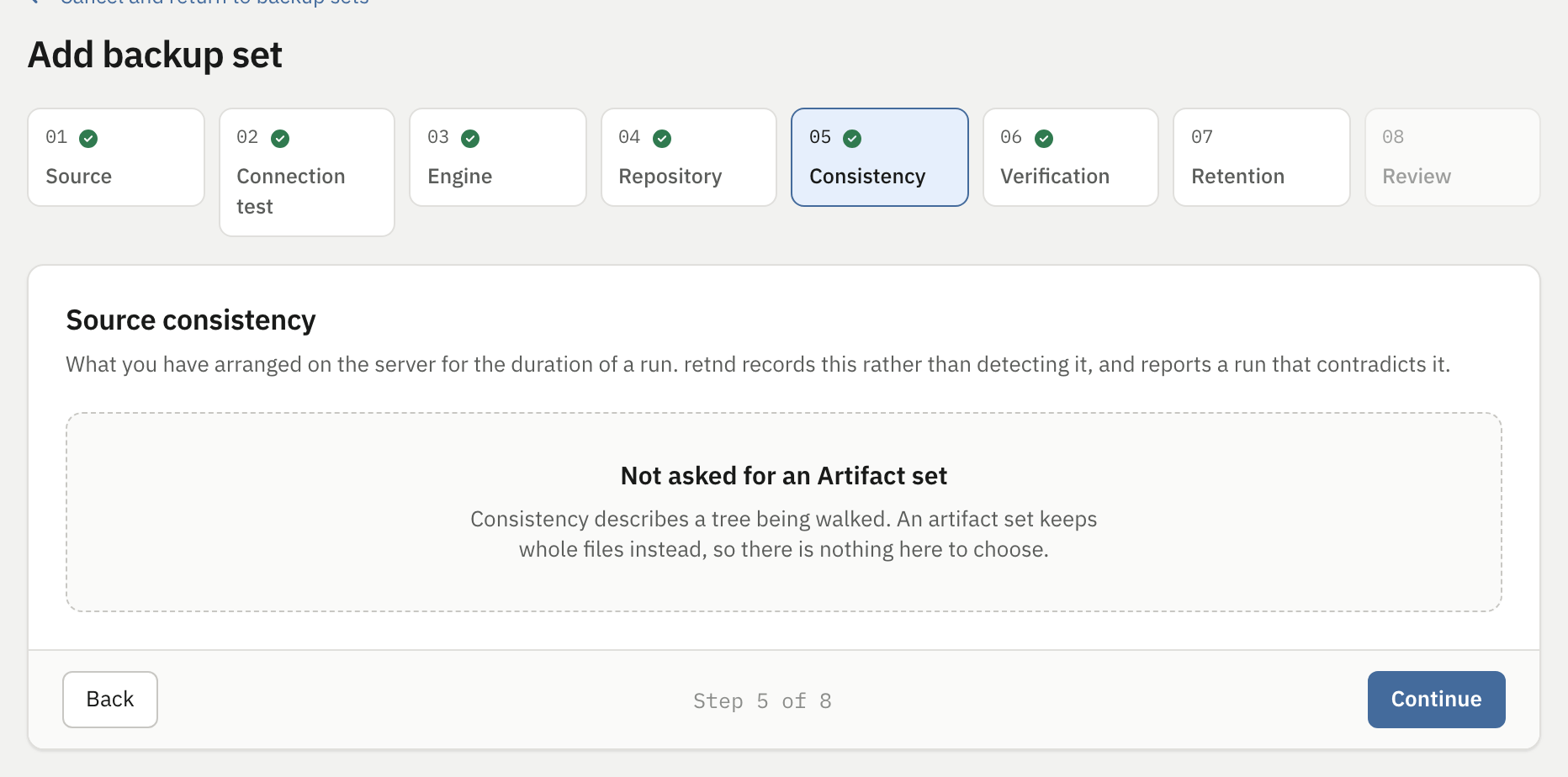
What you have arranged on the server for the duration of a run — a live tree, a quiesced one, or a snapshot taken outside retnd. It is recorded rather than detected, and a run that contradicts it is reported. Like step 4 it is an incremental-engine question, and like step 4 it says so.
Step 6: Completion and validation
This is the step whose heading changes with the engine: Verification on the tracker, “Completion and validation” on the card for an artifact set and “Verification” for an incremental one. They are the same question — how hard is a backup checked before it counts — and a whole-file backup answers it with how completion is signalled and what validates the file on arrival.
Completion method, and why it is the consequential choice on this step
A backup artifact that is still being written looks exactly like one that is finished. Getting this wrong means pulling a half-written archive, verifying the half, and then deleting the remote original. The three answers are not equivalent.
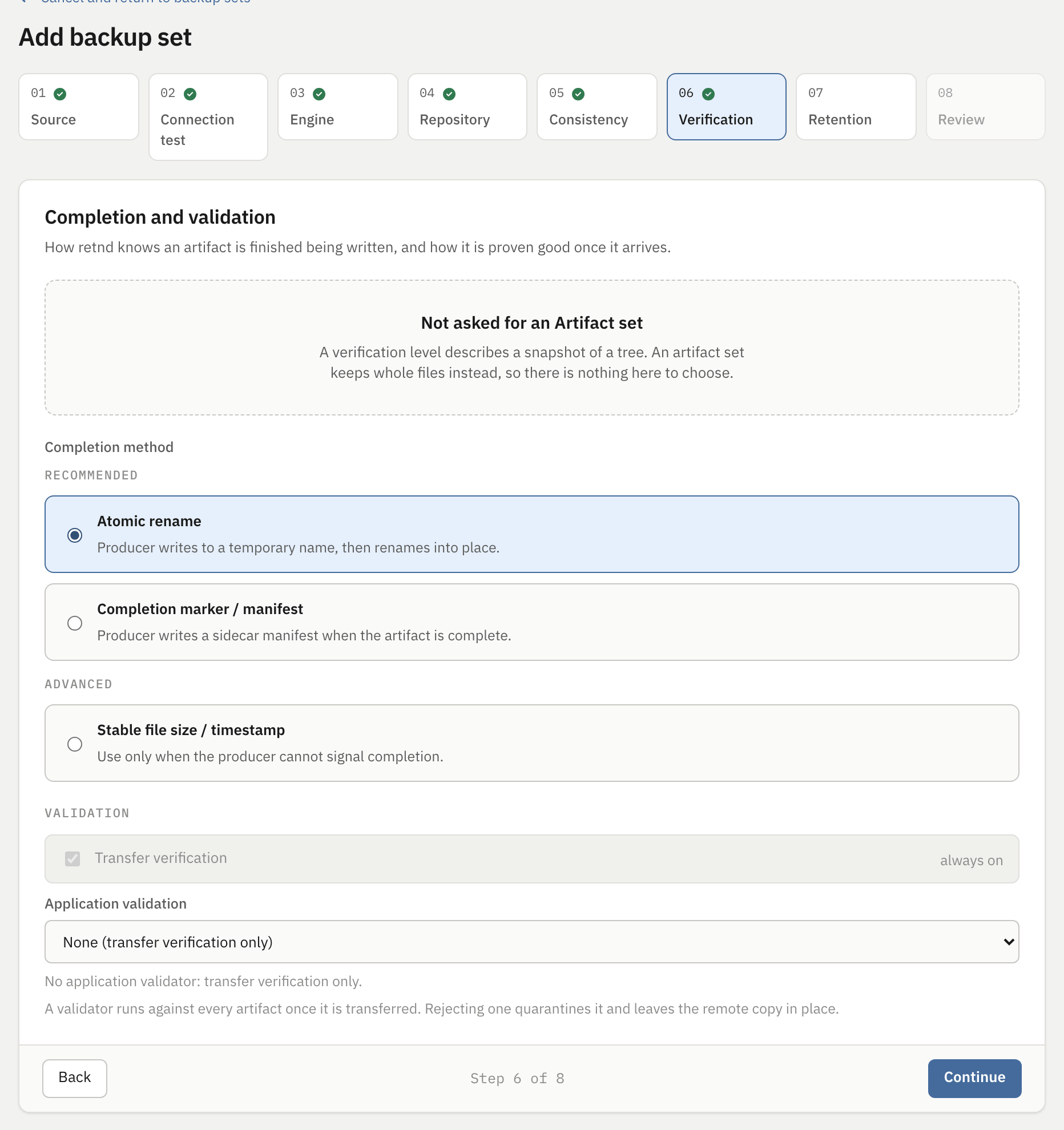
| Choice | Written as | What it does |
|---|---|---|
| Atomic rename | completion.strategy: rename |
Your producer writes to a temporary name and renames into place when it is done. The rename is the completion signal, and on a POSIX filesystem it is atomic, so a partially written file is never visible under a name the manager will match. Pick this if you control the producer. |
| Completion marker / manifest | completion.strategy: marker |
Your producer writes a sidecar file once the artifact is complete. The manager waits for the marker, so an artifact with no marker is never touched, however old it is. Equally safe, and the right answer when your producer cannot rename. |
| Stable file size / timestamp | completion.strategy: stable |
The manager infers completion from a size and mtime that have stopped moving. This is a heuristic, and it is the only strategy that can be wrong. A producer that stalls mid-write for long enough looks finished. |
Two different timers apply, and conflating them is the mistake to avoid. stable_for answers “has this looked done long enough to start processing it”, and the wizard sends one hour for it. A separate delete_safety_delay, defaulting to one hour and applied only to this strategy, answers a different and more dangerous question: “has it looked done long enough to destroy the only other copy”. The remote delete waits for that second timer on top of everything else.
The other two strategies carry a producer-provided completion signal, so they do not need it, and the wizard sends a zero for both timers when you choose one of them.
Validation
Two controls, one of which is not a control.
| Control | Example | What the entry does |
|---|---|---|
| Transfer verification | none to give | Shown, correctly labelled “always on”, and not a control. It cannot be switched off, and the checkbox is disabled rather than absent so the step says what verification you are getting. |
| Application validation | None, or an id from the list | Really sent, as validation.validator_id. The list is the backend's own registered catalogue, and the option labels are the ids themselves because an id is what ends up in config.yaml. A validator runs against every artifact after transfer and checksum, and rejecting one quarantines the artifact and leaves the remote copy in place, which is the whole reason to use one. |
Comparing a local hash against a remote one requires the remote to compute a hash, and against the chrooted, shell-less, forced-internal-sftp account the project's own setup guide recommends, that is not possible at all. Turning hashing on against that account shape does not make verification stronger, it fails every artifact at the verification stage, every time. So a wizard-created backup set is written with validation.hash: "", meaning transfer verification alone, which is the honest posture when hash capability is absent.
If your SFTP account is not hardened that way and does support hashing, set validation.hash: sha256 by hand in config.yaml.
One field this step has no control for at all: stale_after, which decides when a backup set with no fresh artifact starts reporting as stale, is set to 48 hours for every set the wizard creates. Change it by editing config.yaml if your producer runs less often than that.
Step 7: Storage, retention and holds
Where the NAS copy lives, how long backups are kept, and whether retnd may free space on the remote server. The retention half used to be a row of controls that were drawn and never sent, and they are gone: retention is a deployment-wide policy with an editor of its own, and this step reads it back rather than offering a second place to set it.
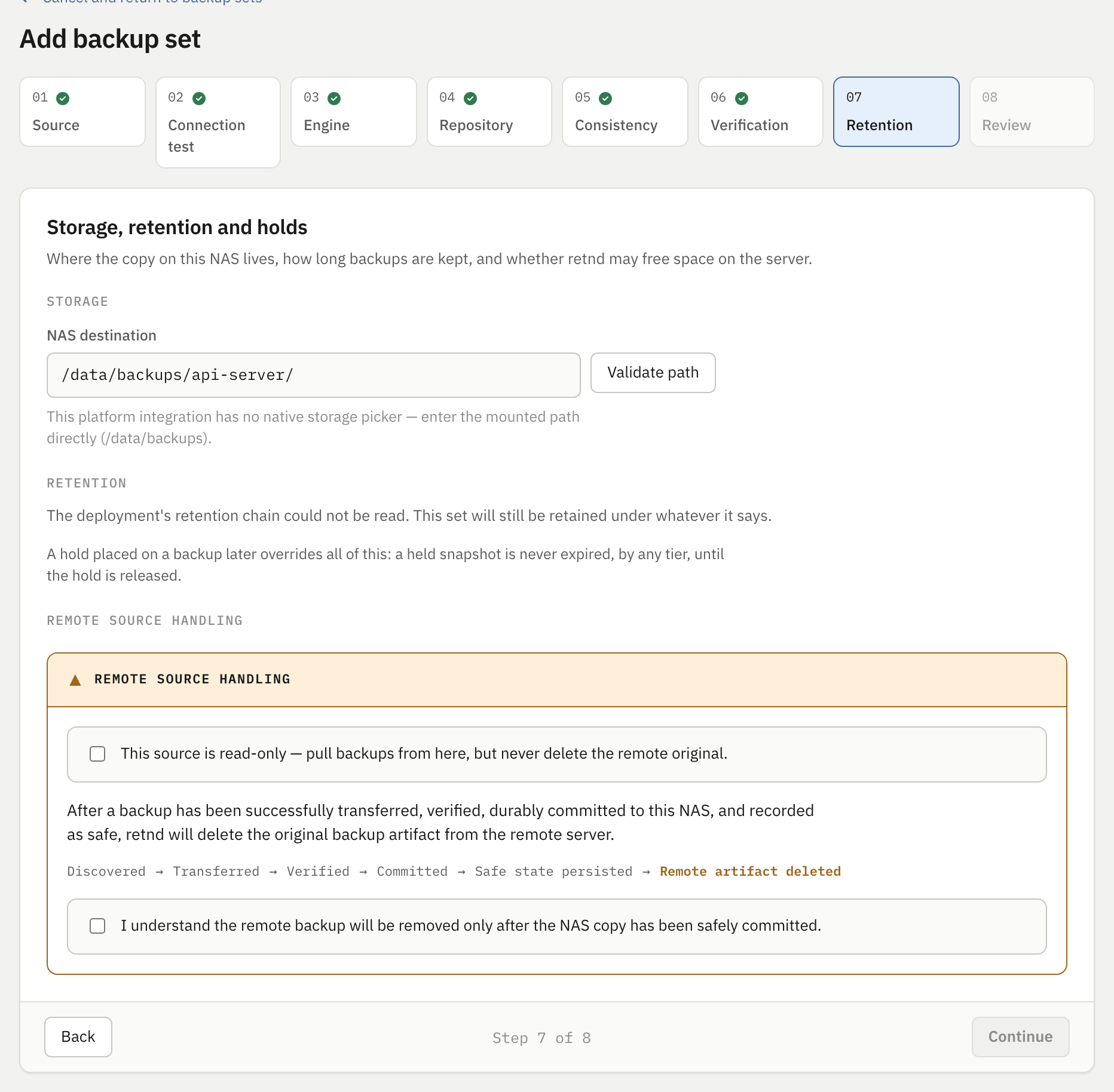
| Control | Example | What the entry does |
|---|---|---|
| NAS destination | /data/backups/api-server/ | Becomes local_path, and it has to be absolute. This is a path inside the container, not on the NAS filesystem. The Compose file mounts your NAS backup share at /data/backups, so this example lands at <your BACKUP_DIR>/api-server/ on the NAS. Give each backup set its own subdirectory: this path also becomes the containment root that the local prune refuses to delete outside of. |
| Validate path | none to give | On a platform with no native storage picker the button is labelled this way rather than pretending to offer a browser the integration does not have. The hint below the field names the mounted path for you. |
| This source is read-only | leave it unticked for the worked example | Declares that retnd may pull from the remote server but must never delete the original. Ticking it replaces the acknowledgement below with a sentence saying every remote copy is kept for good. If the write probe on step 2 proved these credentials cannot write to the source, this is ticked and disabled for you, with the reason beside it: retnd will not offer to remove a file it has not proved it can remove. |
| The acknowledgement | tick it | “I understand the remote backup will be removed only after the NAS copy has been safely committed.” Unticked, this step is unfinished: the review step is unreachable and every save is refused. It is asked here, where the page already explains what deleting the remote source means, rather than as an unexplained toggle earlier in the flow. |
The box those last two controls live in is the product stating its own most dangerous behaviour before you agree to it, and the chain it draws is the real order of operations: discovered, transferred, verified, committed, safe state persisted, remote artifact deleted. The delete is last and the journal write is before it, so a crash in between leaves two copies rather than none.
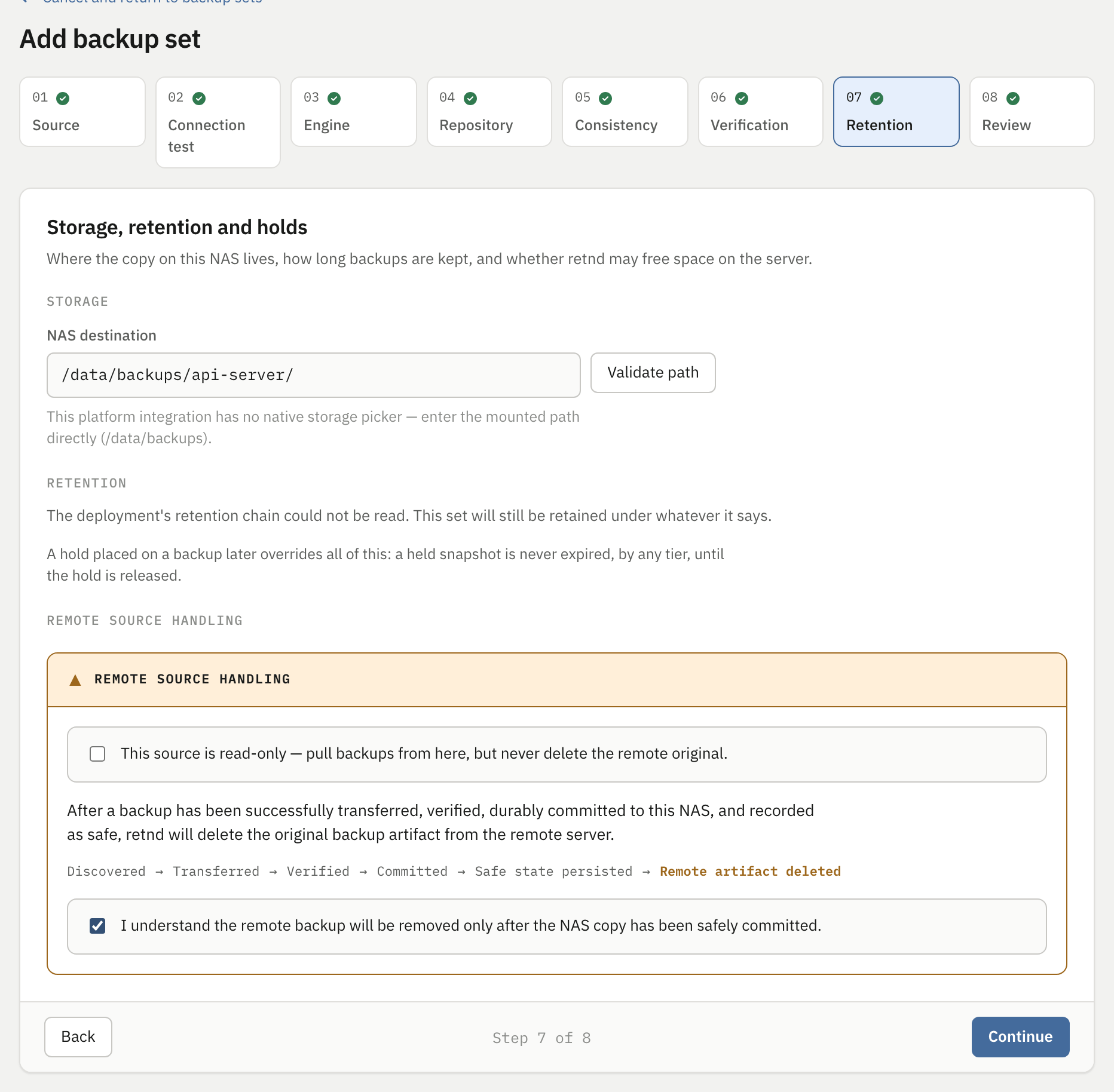
Where the picture above says the deployment's retention chain could not be read, that is the real first-run state rather than a fault: an instance with no configuration does not serve the retention route at all, and the wizard is the one surface that runs before there is a configuration. It changes nothing about the set being created — it will still be retained under whatever the policy says once there is one — and the same step on an ordinary Add backup set reads the chain back and shows it. What the chain actually is, on this deployment and after setup, is below.
What actually decides deletion
Retention is not asked for on this step and it is not per backup set by default. It is a deployment-wide policy, editable under Settings, which any individual set can override with one of its own. It governs deletion of the NAS copies and is unrelated to the remote delete, which is gated by the lifecycle rule and happens as soon as a verified local copy is durable. A hold placed on a backup later overrides all of it: a held snapshot is never expired, by any tier, until the hold is released.
Since 0.3.3 each tier in that policy also says where its copies live, and the drive on this machine is one of the choices rather than an unnamed default. The reference page covers the destinations, the picker and the connection test behind it.
A wizard-created configuration is written with the default chain, three tiers:
| Tier | Buckets by | Window | What it keeps |
|---|---|---|---|
daily | day | 7 days | The newest good artifact in each of today and the six days before it. |
weekly | week | 3 months | The newest good artifact in each week, looking back over three calendar months. The window is counted in months, not weeks, which is why this tier needs its own window_unit. |
monthly | month | 12 months | The newest good artifact in each of the last twelve calendar months. |
Each bucket contributes at most one artifact, and what is kept is the union of every tier's selections plus the protected last-known-good. Anything the union does not claim is a delete candidate, including artifacts that fell in a gap between two tiers' windows rather than outside all of them. Tier order never changes which artifacts survive, only the order tier names appear in a verdict.
There is no spelling of “keep nothing” in the schema. Emptying the tier list does not disable retention, it reinstates the default daily/weekly/monthly policy, which is the fail-safe direction. Retention is turned off by not running a retention pass. And retnd retention previews the decisions without acting on them, which is the right way to check a chain edit before it deletes anything. The web interface has the same preview, with the engine's reason beside every artifact.
Step 8: Review, and Finish setup
Nothing is typed here. What makes this step finished is that the flow can actually be committed, which is the same question the save buttons answer.
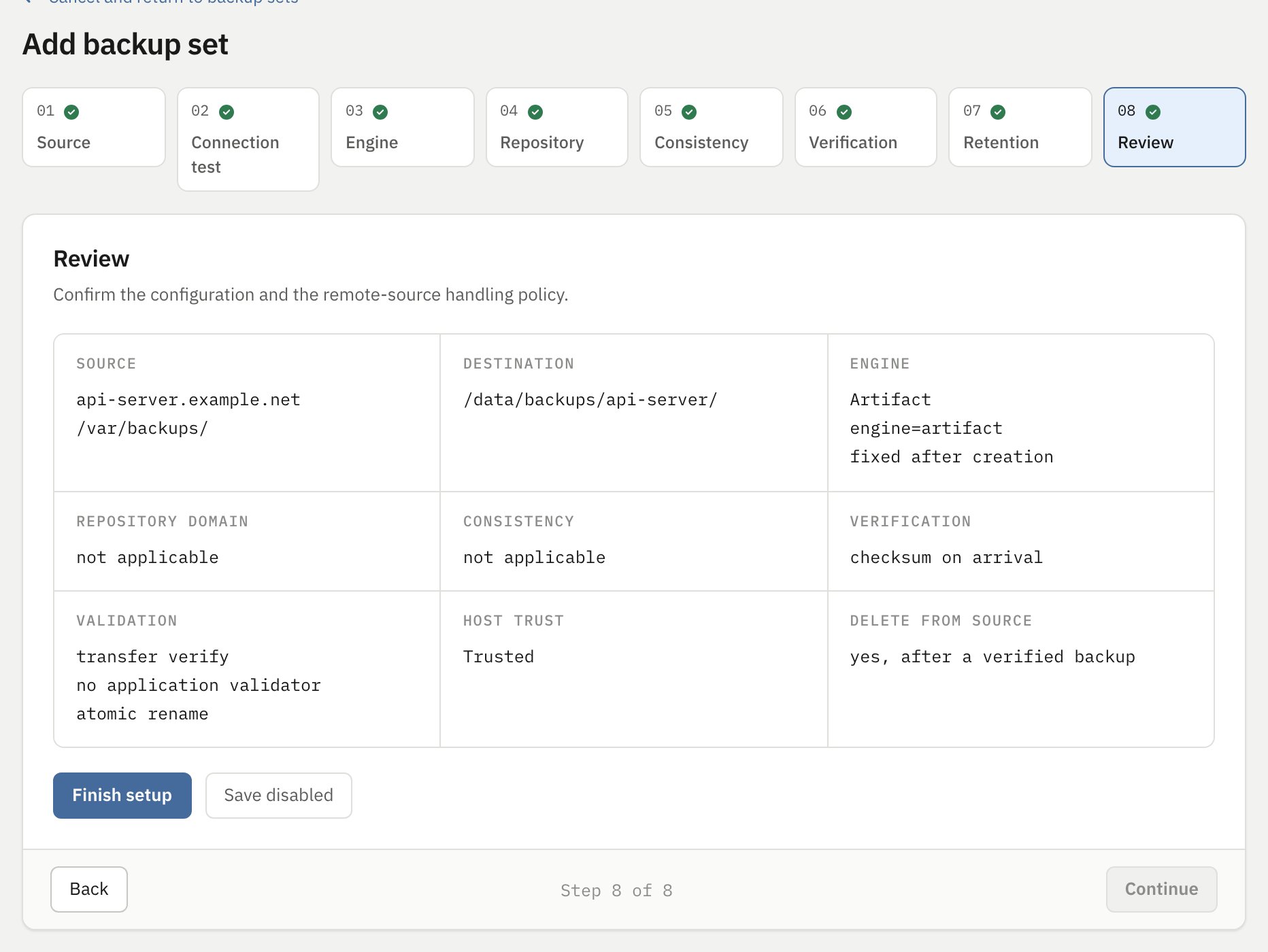
The summary grid reads back what will be written. Check three things in it specifically, because they are the three the earlier steps make easy to get wrong:
- Source shows the hostname and the directory to back up. It does not show the port, so verify that separately after the write.
- Host trust must read “Trusted”. If it does not, go back to step 2; saving will refuse.
- Validation lists the completion method you chose, spelled out, alongside the verification terms, and Delete from source says in words whether this set will remove the remote original.
The two steps this tutorial's engine does not use are in the grid too, as not applicable rather than as a blank: a summary that quietly omitted them would read the same as one where they had been answered.
| Button | When to use it | What it does |
|---|---|---|
| Finish setup | the normal path | Writes the configuration and enables the backup set. The write is an exclusive create, not a rename over whatever is there, so if something else produced a config file in the meantime this refuses rather than destroying it. |
| Save disabled | when the remote side is not ready | Writes exactly the same configuration with disabled: true. The set is excluded from every processing cycle until you enable it, so nothing is pulled and nothing is deleted. Useful if you want the configuration in place before the producer starts writing. |
If a button is disabled, the sentence beside it names the reason: an un-imported key, an untrusted host, a host key that has changed since it was trusted, a connection nobody has tested and the unticked acknowledgement each get their own message rather than a single generic one, and each names the step to fix it on.
What lands on disk
Everything that can fail happens before anything is persisted: the request is validated, the key is resolved, the whole assembled configuration goes through the same validation a hand-edited file goes through at boot, the state directory is checked, and any chosen validator is resolved. Only then is the file created. A configuration the process refuses to finish is never the configuration left behind.
For the worked example, this is the file:
poll_interval: 1h0m0s
state:
    database: /data/state/state.db
sources:
    - id: api
      backup_sets:
        - id: api-server-nightly
          remote:
            type: sftp
            host: api-server.example.net
            port: 22            # the port you entered on step 1
            user: backup-agent
            key_file: /etc/retnd/config/ssh_keys/6f2a1c92-7d40-4b18-9a6e-1e0c5f3b77aa
            key:
                file: /etc/retnd/config/ssh_keys/6f2a1c92-7d40-4b18-9a6e-1e0c5f3b77aa
                env: ""
                command: []
            known_hosts: /etc/retnd/config/known_hosts.d/api_api-server-nightly_known_hosts
          remote_path: /var/backups/
          local_path: /data/backups/api-server/
          include:
            - '*.tar.zst'
          completion:
            strategy: rename
            stable_for: 0s
            delete_safety_delay: 0s
          stale_after: 48h0m0s
          disabled: false
          validation:
            hash: ""
            validator_id: ""
            command: null
          revalidation:
            interval: 0s
            max_per_cycle: 0
            hash: false
            command: null
retention:
    timezone: UTC
    week_starts_on: monday
    daily_days: 7
    weekly_months: 3
    monthly_months: 12
    protect_last_known_good: true
alerts:
    enabled: false
    repeated_failure_threshold: 3
Five things in that file are worth noticing, none of which any screen mentioned:
- Your backup set is grouped under a source called
api. The wizard has no concept of a source, so everything it creates lands under that one name. The set's real identity isapi/api-server-nightly. key_fileandkey.fileboth appear, holding the same path. The first is a deprecated alias kept in step with the second so an older binary can still read the file.- There is no
exclude_pathskey. The wizard never writes one, because no screen asks for one. Add it by hand if you need the remote walk pruned. - The retention numbers are written out, not left blank. Validation resolves the defaults in place before the file is marshalled, so 7/3/12, UTC and monday are frozen into your configuration rather than tracking whatever the product's defaults become later.
- Alerting is off.
alerts.enabled: falsemeans nothing notifies you about a stale backup, a repeated failure, a changed host key or critical storage pressure. Turn it on by hand if you want any of that.
What you get next
The configuration is durably on disk the moment Finish setup returns. The instance then tries to bring a real service up against it in the same process, so you do not have to restart a container you just installed, and on success it takes you to the backup sets list, which is the page that now has something on it.
The screenshot below is the backup sets list as the development mock renders it, which means four sets in four different states. A real instance one second after first run has one backup set and no artifacts at all. Nothing in the numbers below is a claim about your deployment. It is here for the shape: the section navigation, the per-set controls, and where things live.
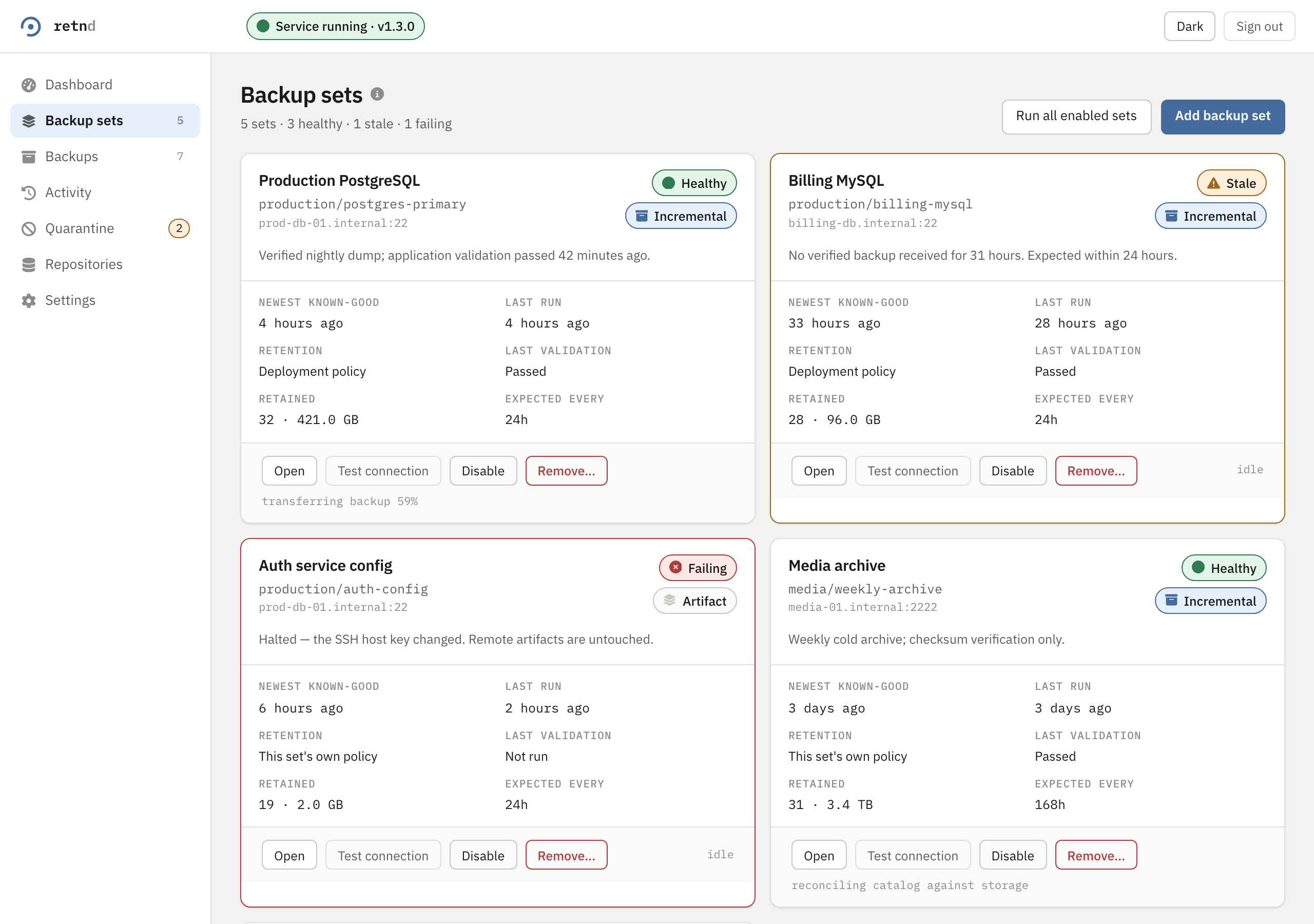
What to actually do first on a real instance:
- Check the port. Open Settings or read
config.yamland confirmremote.portis the number you meant, given that a non-numeric entry became 22. - Run one cycle by hand before trusting the schedule, and watch it reach the end. The default poll interval a wizard-written configuration gets is one hour.
- Watch the first artifact all the way through to remote deletion. That is the first moment the whole rule is exercised, and it is the cheapest time to find out that the include pattern matched nothing.
- Send yourself a test email from Settings' Account recovery card, and check it arrives. The enrolment confirmation already proved the mail path once, and Send test email is the control that proves it still works — app passwords get rotated and providers change their submission rules, and the failure is silent until the day you need a reset link.
Coming back later
Once an administrator exists, the enrolment page is closed and this is what the address answers with.
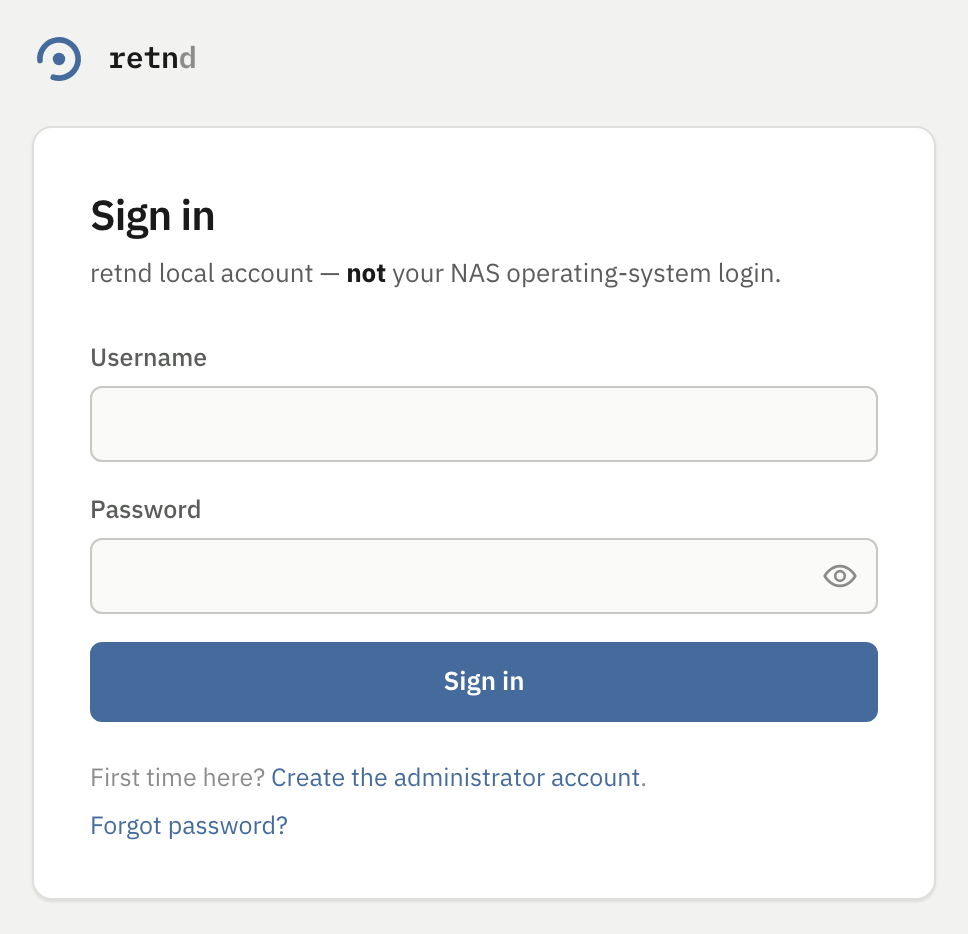
The “First time here? Create the administrator account” link at the bottom goes to the enrolment page without a token. That is the right destination on a genuinely fresh install reached without the printed link, and on an instance that already has an administrator it will fail, correctly, with the message discussed above.
This page also carries Forgot password?, which the picture above predates; the next screen is what it does.
Forgetting the password
Enrolment is still a one-time door, and it is still not reopened by losing the password. The way back in is the recovery address, and it starts with Forgot password? on the sign-in page. Two screens, both reached without being signed in: Reset your password at /forgot-password, which asks for the Username and has one button, Email a reset link; and Choose a new password at /reset-password, reached only from the link in the mail, with New password, Confirm new password and Set password.
The first of them asks for the username and nothing else, and it answers the same way whatever you type — a confirmation that a message has been sent, if one was due — because an endpoint that answered differently would tell anyone who can reach the port what the account is called. The page is not where you find out whether you got the name right. The mailbox is.
- A message titled “retnd: password reset” arrives at the recovery address, carrying a link of the form
http://10.0.0.10:8080/reset-password?token=<a long random string>. It is built from the samePUBLIC_BASE_URLas the enrolment notice, so a deployment still on the shipped default oflocalhostmails a link that only resolves on the NAS itself. Unlike the enrolment notice, nobody is watching a log to notice that, which makes it worth setting properly at install time. - The link works once, and for 30 minutes. Same shape as the enrolment token, and for the same reason. It lives in the engine process, so restarting the container invalidates any outstanding link, and asking again mints a new one.
- Set password signs everything out. Every live session is revoked, including the browser that asked for the reset and any other still open elsewhere, so what a successful reset hands you is the sign-in page rather than a dashboard. That is deliberate: a reset is also what you do when you think somebody else has a session, and one that left existing sessions running would not be a recovery at all.
Nothing arrives? Then the address or the mail path is the problem, not the password, and the browser cannot tell you which. If you are still signed in somewhere, fix it in Settings, in the Account recovery card: the recovery address and the SMTP details are both editable there, Send test email proves the path without changing anything, Save recovery settings writes it, and changing the address sends a fresh confirmation to the new one rather than trusting it. If you are not signed in anywhere and no mail arrives, you are down to a factory reset, which archives the administrator record, the catalog and the configuration, reopens enrolment, and leaves every retained backup on disk — install --mode factory-reset, and it is the last resort rather than the procedure.
While we are here: the password can also simply be changed from Settings, which asks for the current one. That is the ordinary rotation and it has nothing to do with the mail path.
Verifying the recovery address
The message enrolment sends is not a receipt. It is a verification link, and the account it belongs to is provisional until somebody opens it: /verify-email?token=<a long random string>, one page, no fields, reached from whatever device holds the mailbox — a phone that has never signed into this deployment opens it just as well as the browser you enrolled from, because the token in the link is the credential and nothing else is asked for.
Three facts about it, in the order they matter:
- The link works once, and for 30 minutes. Opening it a second time says the link has expired or has already been used, which is also what an unknown token, a link for an account that no longer exists and an address that is already verified all say — one answer, so that nothing about the account can be probed with it. If the window closed, sign in and use Resend verification email in the banner or in Settings; a resend mints a fresh link and invalidates the previous one.
- Nobody opening it deletes the administrator. That is the point of it, rather than a harsh edge: an address that was mistyped is an account that is already lost, and the loss is only discovered months later at the one moment it cannot be fixed. So an unverified account lapses at a deadline fixed when it was created — at least 30 minutes — and when it does, the record, its sessions and its SMTP settings go, enrolment reopens, and a fresh enrolment notice is printed to the engine's log exactly like the one on screen 0. Re-running a 30-second enrolment with the address spelled right is the whole of the recovery.
- Verifying is permanent. The deadline is cleared for good, so an established administrator who later edits the address in Settings gets an unverified address and a banner asking them to confirm it — never a deleted account.
While the address is unverified, every signed-in screen carries an undismissable banner naming the address, the deadline and a Resend action. It is deliberately not dismissable: the thing it is warning about is the account disappearing.
Adding the second VPS
First run configures exactly one backup set, because the point of it is to turn an unconfigured instance into a serviceable one, not to finish the whole deployment. The second VPS is an ordinary addition afterwards.
Go to Backup sets, press Add backup set, and you get the same eight steps you have just walked, with three differences:
- There is a third button on step 8, Save, enable & run, which starts a cycle immediately. If the save succeeds but the run does not start, the page says so and stays put rather than navigating away and letting you believe a backup is running. The other two read Save & enable and Save disabled; “Finish setup” is the first-run label for the middle one, because during first run that is what it finishes.
- The connection check on step 2 is the same one, and it gates the save the same way.
- Step 7 can read the deployment's retention chain now, and shows it, because there is a configuration to read it out of.
Give the second set its own local_path, for example /data/backups/cicd/. Two backup sets sharing a destination directory would put two prune containment roots on the same tree, which is not a configuration worth having.
Both sets will land under the same api source, so their identities become api/api-server-nightly and api/<your second set>. Retention stays a single global policy applied to both.
Screens not pictured here
Five states on this path exist in the product and are not on this page, because the development mock cannot produce them. They are described rather than quietly omitted.
- A failed enrolment. The fixture's enrolment call always succeeds, so the error banner cannot be reached locally. Since #274 it distinguishes a token that has expired or been used from a password the server would not accept, rather than blaming your password for a problem with the link.
- “Configuration saved”, the restart-required screen. Reached when the configuration is written but the instance cannot start serving it in the same process. It reads: “Your configuration has been written and is safe. This instance could not start serving it without a restart, so restart the retnd container or service and open this page again. You do not need to enter any of it a second time.” The fixture always reports that activation succeeded, so this state is unreachable locally. If you see it, restart the container and sign back in; do not run the wizard again.
- The real post-setup backup sets list. One backup set, no artifacts, nothing in the activity feed. See the warning on screen 11.
- “Choose a new password”, the page the reset link lands on. Reached only from a link in a real email, which is the one thing a fixture cannot produce: the development mock has no mail server and mints no reset token for a page to honour. The token travels in the URL exactly as the enrolment one does, and pressing Set password lands you on the sign-in page rather than in the application, because a reset revokes every session including the one that asked. Screen 13 walks both halves.
- The Account recovery card in Settings. Where the recovery address and the SMTP details are changed afterwards, with Send test email beside them. This page walks first run and stops at the dashboard, so Settings is not on it at all; the reference page enumerates the card's controls, and its own Settings capture predates the card.
An earlier version of it walked a dedicated setup page whose heading was “Set up retnd”. That page no longer exists: #275 replaced it with the ordinary wizard reached from the banner, and the capture script kept describing the old flow until it stopped running at all.